
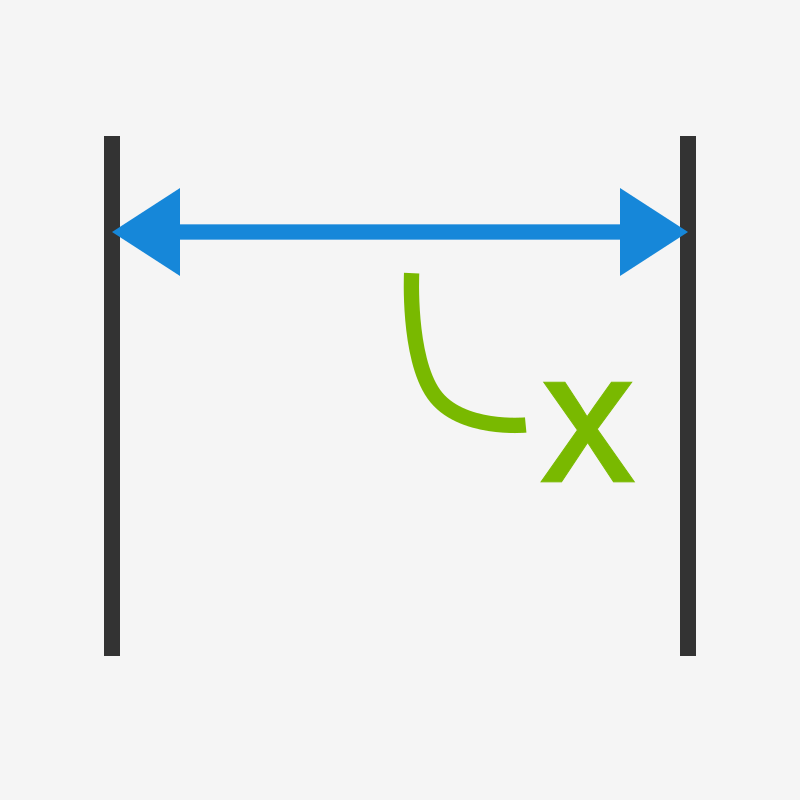
Move Dimension Text automatically optimizes the position of text for short dimension segments in the active view.
To load this content, you need to allow the YouTube service.
If you switch from Archicad to Revit, for example, you soon notice that some features you took for granted are suddenly missing.
One example is the automatic repositioning of text for short dimensions. Archicad, Allplan and AutoCAD already include this functionality, but Revit does not. That is why we developed Move Dimension Text.
Construction sites use printed drawings. On paper, no one can zoom into the model or measure a distance digitally.
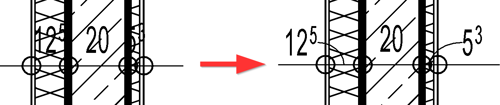
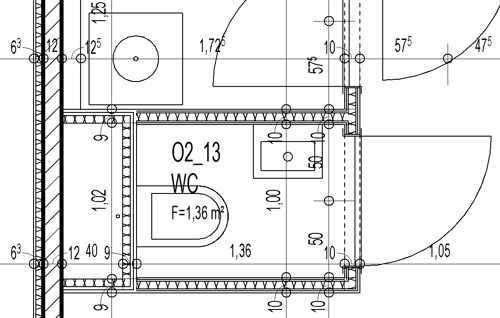
This makes legible dimensions essential. Dimension text often overlaps other graphics, especially when showing small wall thicknesses:
hatch patterns,
element edges or
other dimension values.
If these overlaps are overlooked or ignored when preparing drawings, dimensions can be difficult or, in the worst case, impossible to read on site.
Correcting each dimension text manually is time-consuming, especially in large floor plans.
Move Dimension Text automatically improves the readability of short dimension segments and keeps the required information clear on printed drawings.
On screen with line weights hidden:
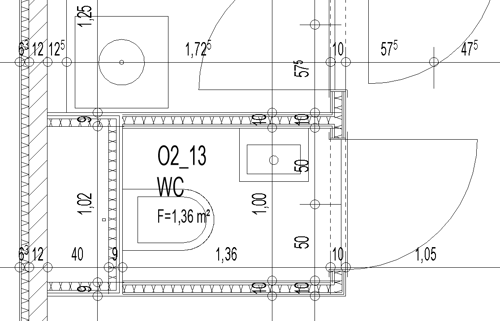
How the printed drawing actually looks:
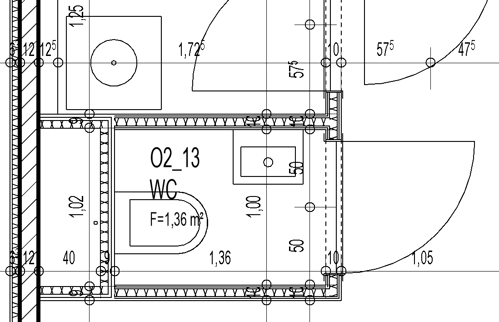
After repositioning dimension text:
More readable construction drawings
Automatic text repositioning for short dimensions
Consistent spacing between adjacent dimension values
Less manual adjustment
Takes text size and view scale into account
No changes to dimension values or element references
Quick processing of the entire active view
To run the add-in, open the view you want to process and click the “Maßtexte versetzen” button (move dimension text).
A dialog opens: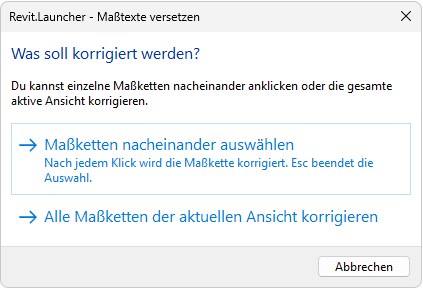
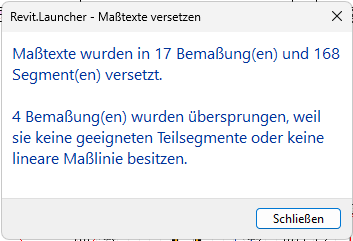
After the selected action is complete, a results dialog shows the number of corrections:
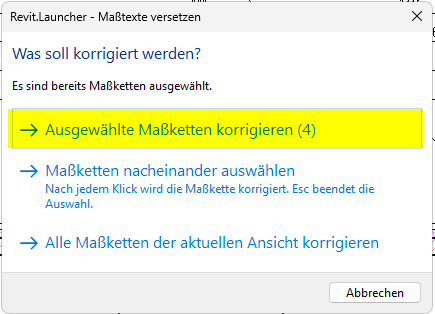
Multiple selection: preselect dimension strings
If you preselect one or more dimension strings, they are corrected when you then click the tool button:
Select individual dimension strings
Choose “Maßketten nacheinander auswählen” (select dimension strings one by one) to select individual dimension strings for correction in sequence.
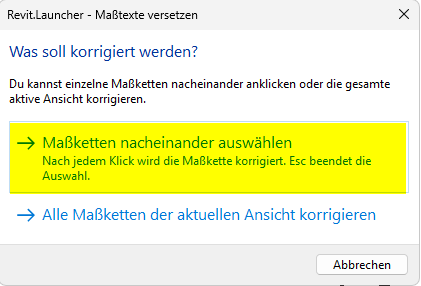

Click “Abbrechen” (cancel) or press Esc to exit the tool.
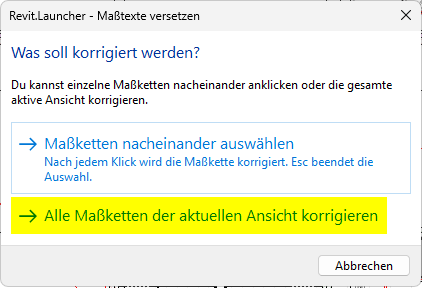
Entire view
To correct all dimension strings in a view at once, click the corresponding button:
Reset text positions
If you are not satisfied with the result, you can reset the dimension text positions.
Select a dimension string, right-click and choose Reset Dimension Text Position (German: “Position von Bemaßungstext zurücksetzen”):
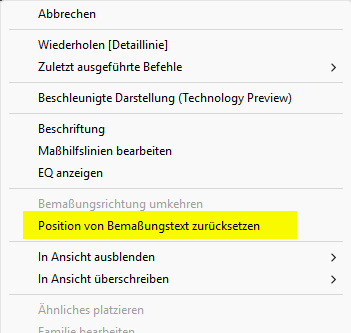
If multiple dimension strings are selected, only the dimension string under the pointer is reset.
Correction rules
Text for dimension segments shorter than 16 centimetres is moved outward when necessary. Longer segments generally provide enough space, so their text is reset to its default position.
The tool checks the spacing between neighbouring texts. It chooses the direction that leaves as much space as possible to the next dimension value.
If a text is between two closely spaced dimension values, its position is protected. This prevents automatic repositioning from unnecessarily spreading out compact groups of text.
1.0.9.14
Pressing F1 opens the BIMpedia article.
New icon
Apply the tool to individual dimension strings or the entire view
If you have any problems, questions, ideas or suggestions, please contact our customer service team. We welcome your suggestions for improvement!