
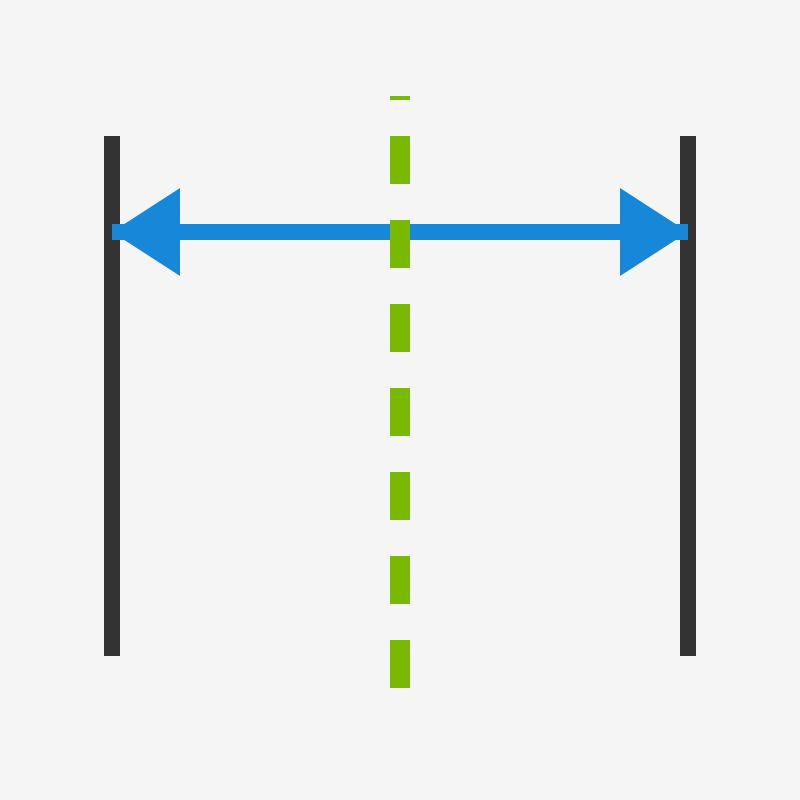
The “Split Dimensions” and “Join Dimensions” tools let you quickly restructure existing linear dimension strings. You can split a dimension string into two at a chosen point or combine two parallel dimension strings into one.
To load this content, you need to allow the YouTube service.
Dimension strings often need to be adjusted as a project progresses. For example, a long dimension string may need to be split between two areas of a drawing, or several separate dimension strings may need to be combined into one continuous string.
Revit has no convenient built-in function for this. Often, you have to delete the existing dimension strings and select the required references again. This creates extra work and increases the risk of missing references or accidentally selecting other element edges.
Quickly restructure existing dimension strings
Split dimension strings without manually selecting all references again
Join two parallel dimension strings into one
Reuse the dimension type and existing references
Automatically remove duplicate references and zero-length dimension segments when joining
Split Dimensions
Use “Split Dimensions” to divide an existing linear dimension string into two separate dimension strings at a chosen point.
To run the add-in, click the “Bemaßung schneiden” button (Split Dimensions).
Next, select the dimension string you want to split. Alternatively, select exactly one dimension string before starting the tool.
Then click the point on the dimension string where you want to split it. The tool identifies the nearest dimension segment and divides the existing references at this position.
Two new dimension strings are then created using the original dimension type.
Both dimension strings use the reference at the split point as their shared end and start, respectively. This keeps the dimensioning clear at the split.
Requirements
The selected dimension must:
be a linear dimension string,
have at least three references,
consist of at least two dimension segments,
contain valid references that can be used in the active view.
A single dimension with only two references cannot be split further.
Join Dimensions
Use “Join Dimensions” to combine two linear, parallel dimension strings into a single dimension string.
To run the add-in, click the “Bemaßung verbinden” button (Join Dimensions).
Select the first dimension string, then the second. Alternatively, select exactly two dimension strings before starting the tool.
The tool checks that both dimension strings are linear and parallel to each other. It then combines all references from both strings into a single dimension.
The joined dimension string uses the position and dimension type of the first dimension string selected.
Requirements
To join dimension strings:
exactly two dimension strings must be selected,
both dimension strings must be linear,
both dimension strings must be parallel to each other,
enough valid references must be available for the new dimension string.
Dimensions that are not parallel or not linear cannot be joined.
0.0.0.1
Press F1 to open the BIMpedia article.
New icon
0.0.0.0
Beta test
If you have any problems, questions, ideas or suggestions, please contact our customer service team. We welcome your suggestions for improvement!