Placing families

Searching...

    This add-in allows you to automatically place families according to configurable, rectangular patterns. This enables a large number of placements to be carried out efficiently, based on rules, and without errors.

    YouTube Content

    To load this content, you need to allow the YouTube service.

    During the planning process, certain elements—such as ventilation outlets, light fixtures, or sensors—often need to be placed in multiple rooms according to a fixed pattern. This repetitive task can quickly lead to errors and waste valuable time.
    profitieren_white.png
    • Automatic placement of any number of families according to a configurable pattern
    • Simultaneous placement in multiple rooms or MEP rooms is possible
    • Placement based on fixed distances, flexible distributions, or grid counts
    • Installation height can be defined as an offset from the plane or as an absolute value
    • Placement also possible in rooms that are not orthogonal to the project coordinate system

    There are three placement modes available. Use the tabs to navigate through the modes and view the feature overview for each mode.

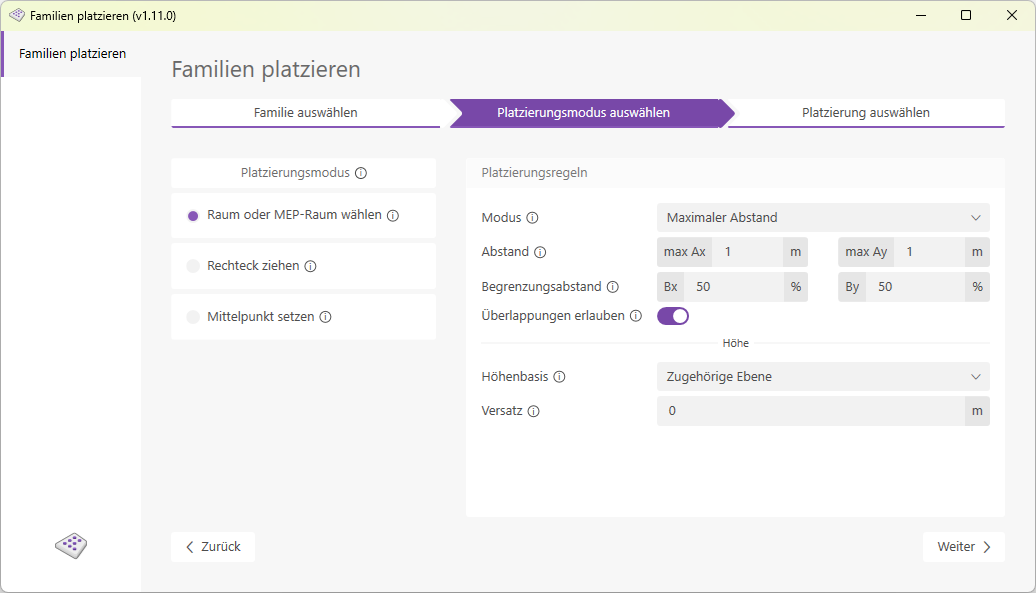
    In the "Select Room or MEP Room" placement mode, all rooms in the model are listed. You can select as many rooms as you like and populate them with the desired families based on your settings.

    The following placement rules can be configured:

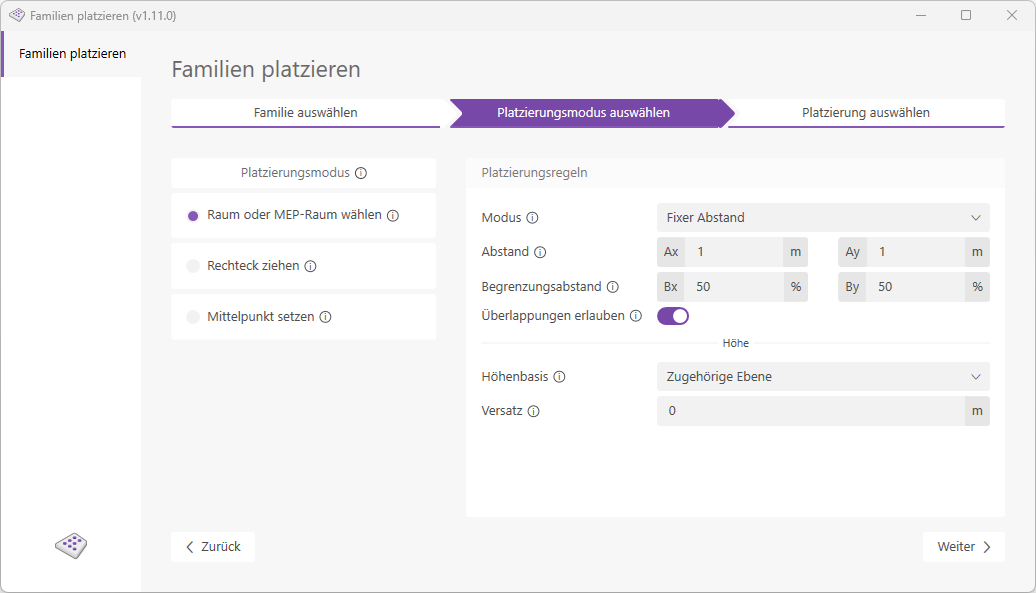
    • Fixed Distance Control Mode:
    familien_platzieren_raum_fixer_abstand.png
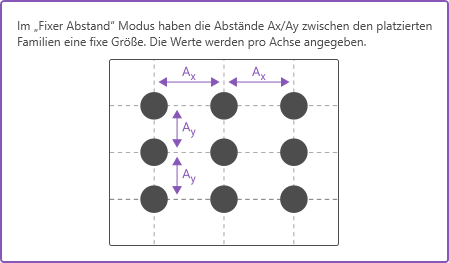
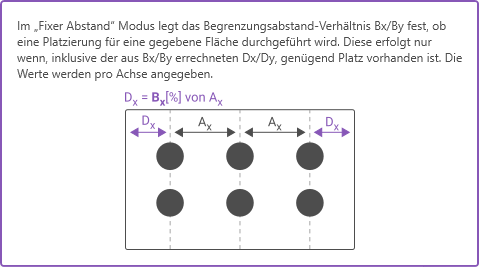
    The elements are placed in a fixed, definable Distance positioned relative to each other. The Limiting distance, The distance to the room boundary can be specified as a percentage of the defined distance.
    familien_platzieren_fixer_abstand.png
    familien_platzieren_begrenzungs_abstand.png
    Example: Room width 5 meters; defined distance 2 meters; percentage of distance to room boundary 50% = 1 meter.
    Result: Elements are placed at 0.5, 2.5, and 4.5 meters. The distance between the elements is therefore a fixed 2 meters, while the distance to the boundary is variable (but no more than 1 meter).
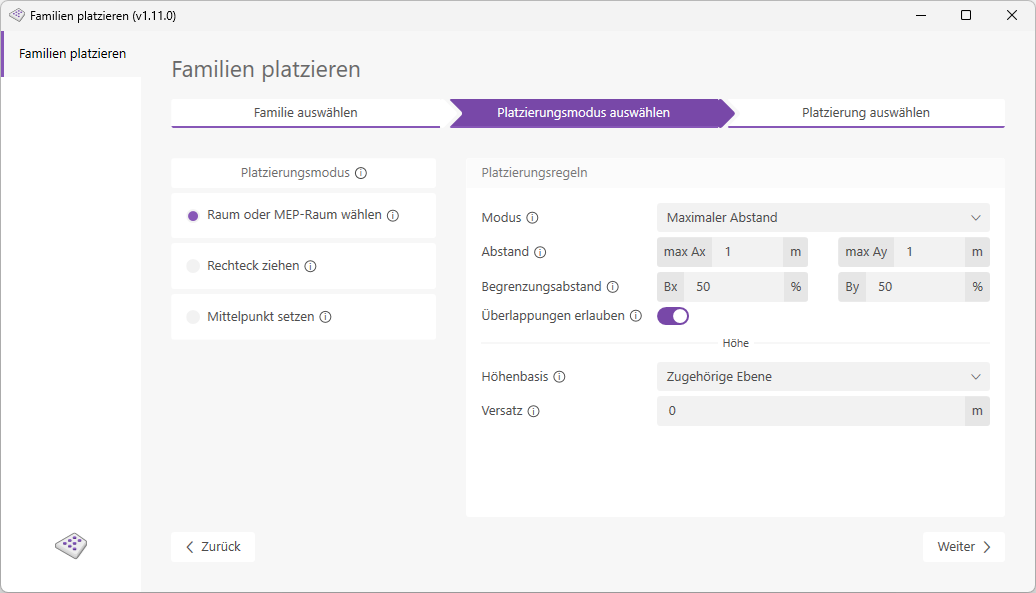
  • Control Mode: Maximum Distance:
  • familien_platzieren_raum_maximaler_abstand.png
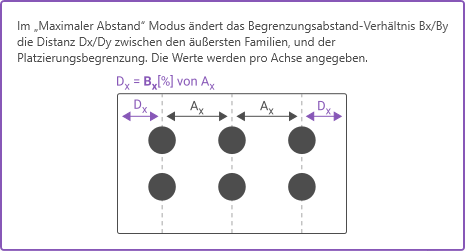
    Families are provided with variable spacing placed, a variable to be defined maximum value determines the upper limit of the distances. Here, too, the Distance from the room boundary expressed as a percentage of the distance between the families.
    familien_platzieren_raum_maximaler_abstand_abstand.png
    familien_platzieren_raum_maximaler_abstand_begrenzungsabstand.png
    Example: Room width 5 meters; defined maximum distance 2 meters; percentage for distance to room boundary 50% = 1 meter.
    Result: Elements are placed at 0.83 / 2.5 / 4.17 meters. The distance between the elements is x, and the distance to the room boundary is 50% of x. For a room width of 5 meters: x = 5/3 = 1.67 meters
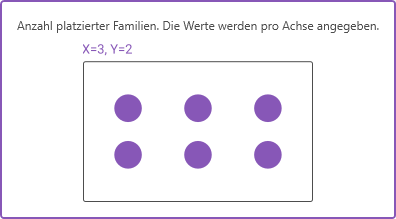
  • Control Mode: Fixed Number:
  • familien_platzieren_raum_fixe_anzahl.png
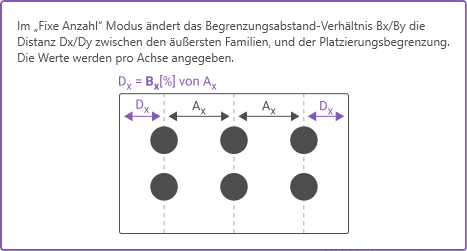
    Instead of a spacing, in this rule mode, select the Number of families, but the distance to the room boundary must still be specified. The elements are arranged starting from the center of the room.
    familien_platzieren_raum_fixe_anzahl_familien.png
    familien_platzieren_raum_fixe_anzahl_begrenzungsabstand.png
  • Allow Overlap:
    The "Allow Overlap" switch determines whether the placed families are allowed to overlap with the room boundary.
  • Height Base:
    Select one of five options here to define the base for the placement height.
    • Absolute Zero
      Place at elevation zero, starting from the project base point.
    • Lower room boundary (floor slab)
      : Place at the lower room boundary or floor slab.
    • Upper room boundary (ceiling)
      : Place at the upper room boundary or ceiling.
    • Associated Level
      : Place at the associated level of the respective placement area.
    • Selected Level
      Place on a selected level.
  • Offset:
    Relative offset from the elevation baseline.
  • Note:

    • For irregularly shaped rooms, placement generally follows the same two-axis method. Elements that would be placed "outside" the room as a result are not placed.
    • If an element to be placed would happen to be placed exactly at the location of a (room-bounding) column, for example, that element cannot be placed automatically. If the column is not defined as room-bounding, the element is placed at the location of the column.

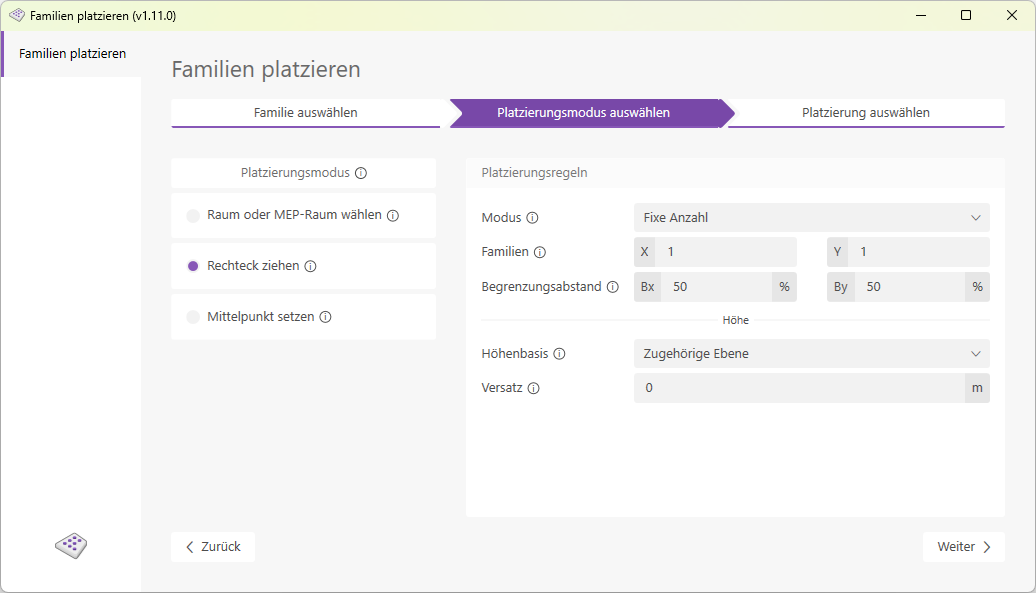
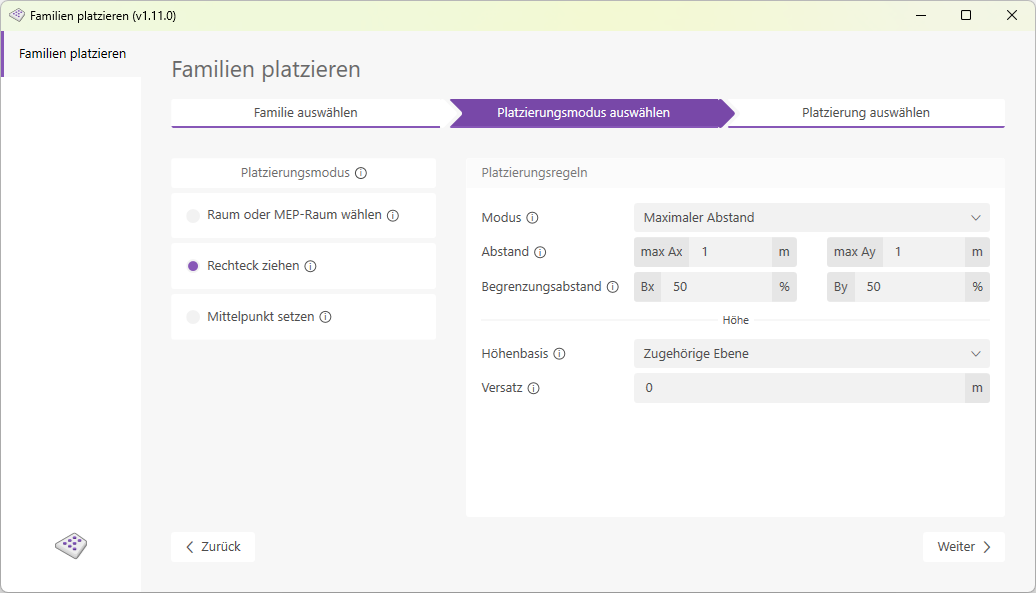
    In Rectangle Placement Mode, you can define a rectangle directly in Revit by selecting a start point and an end point. This rectangle is then filled with the desired families according to the settings you have specified.

    The following placement rules can be configured:

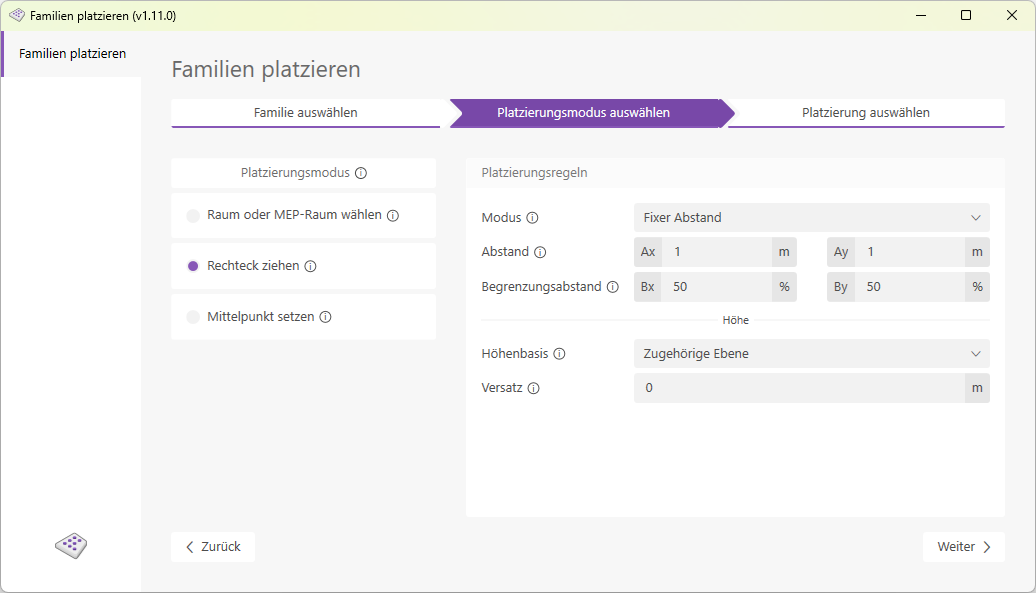
    • Fixed Distance Control Mode:
    familien_platzieren_rechteck_fixer_abstand.png
    The elements are arranged in a fixed, definable Distance positioned relative to each other. The Limiting distance, The distance to the room boundary can be specified as a percentage of the defined distance.
    familien_platzieren_fixer_abstand.png
    familien_platzieren_begrenzungs_abstand.png
    Example: Room width 5 meters; defined distance 2 meters; percentage of distance to room boundary 50% = 1 meter.
    Result: Elements are placed at 0.5, 2.5, and 4.5 meters. The distance between the elements is therefore a fixed 2 meters, while the distance to the boundary is variable (but no more than 1 meter).
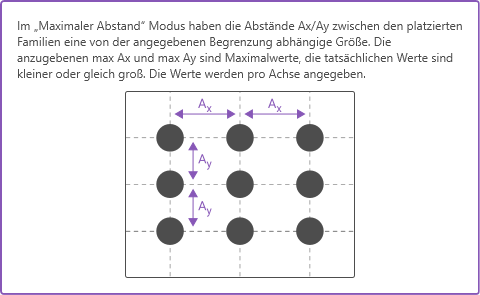
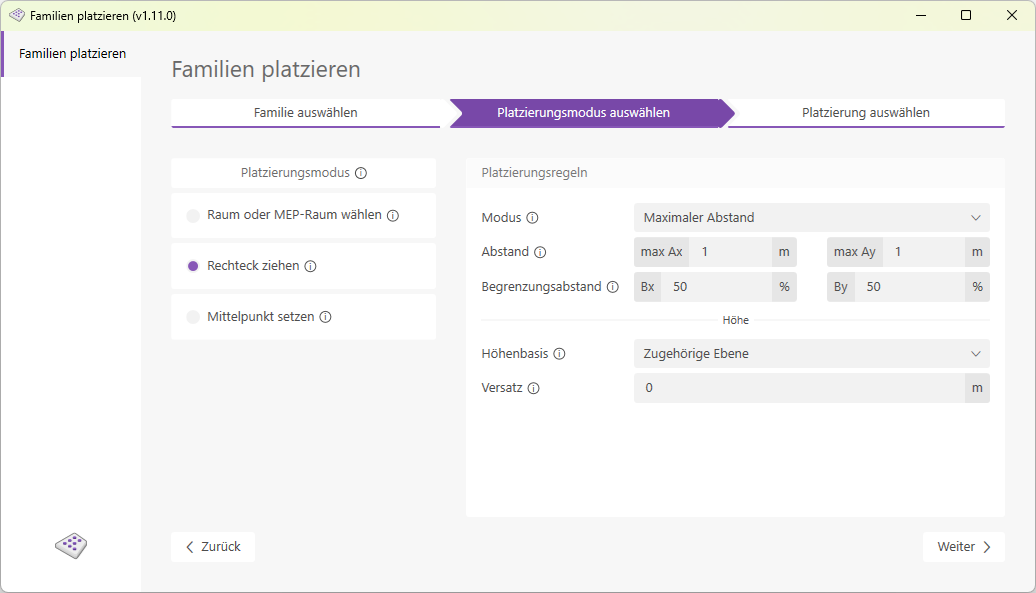
  • Control Mode: Maximum Distance:
  • familien_platzieren_rechteck_maximaler_abstand.png
    Families are provided with variable spacing placed, a variable to be defined maximum value determines the upper limit of the distances. Here, too, the Distance from the room boundary expressed as a percentage of the distance between the families.
    familien_platzieren_raum_maximaler_abstand_abstand.png
    familien_platzieren_raum_maximaler_abstand_begrenzungsabstand.png
    Example: Room width 5 meters; defined maximum distance 2 meters; percentage for distance to room boundary 50% = 1 meter.
    Result: Elements are placed at 0.83 / 2.5 / 4.17 meters. The distance between the elements is x, and the distance to the room boundary is 50% of x. For a room width of 5 meters: x = 5/3 = 1.67 meters
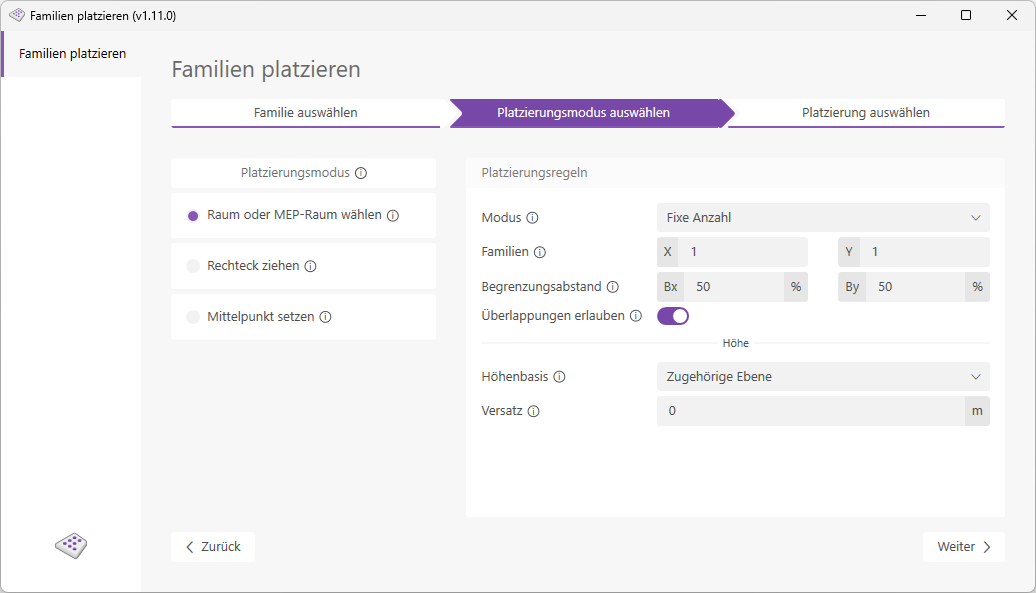
  • Control Mode: Fixed Number:
  • familien_platzieren_rechteck_fixe_anzahl.png
    Instead of a spacing, select the Number of families, but the distance to the room boundary must still be specified. The elements are arranged starting from the center of the room.
    familien_platzieren_raum_fixe_anzahl_familien.png
    familien_platzieren_raum_fixe_anzahl_begrenzungsabstand.png
  • Height Base:
    Select one of five options here to define the base for the placement height.
    • Absolute Zero
      Place at elevation zero, starting from the project base point.
    • Lower room boundary (floor slab)
      : Place at the lower room boundary or floor slab.
    • Upper room boundary (ceiling)
      : Place at the upper room boundary or ceiling.
    • Associated Level
      : Place at the associated level of the respective placement area.
    • Selected Level
      Place on a selected level.
  • Offset:
    Relative offset from the elevation baseline.
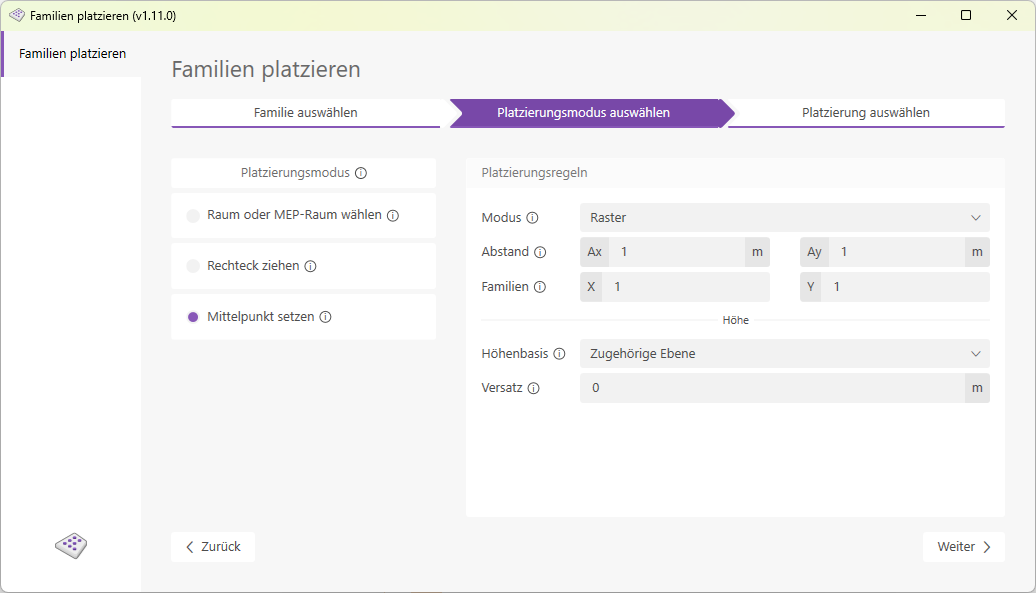
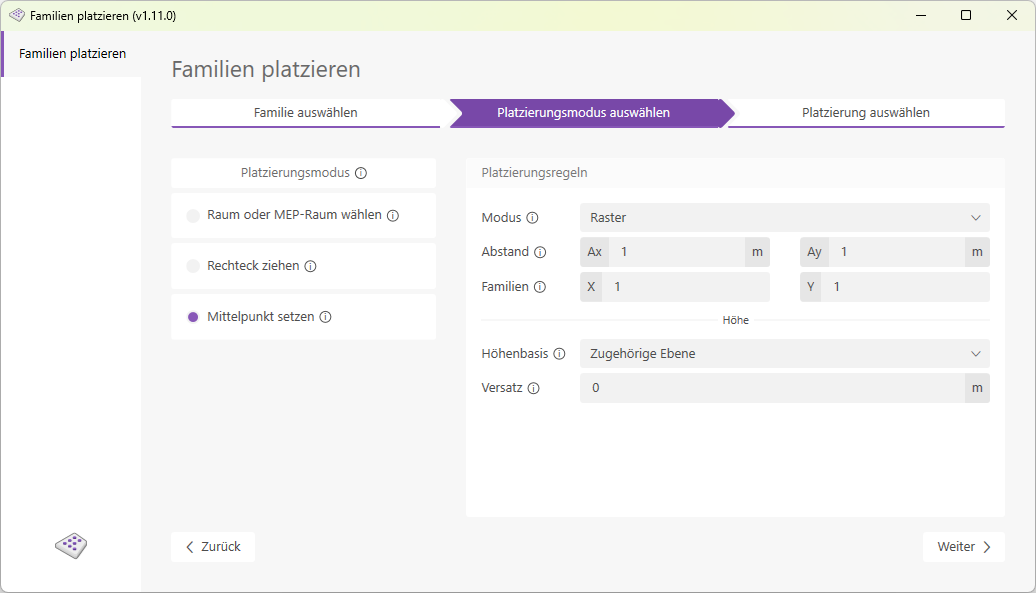
  • In "Set Center" placement mode, a point selected in the Revit user interface serves as the basis for placement. 

    The following placement rules can be configured:


    • Grid mode:
    familien_platzieren_mittelpunkt_raster.png
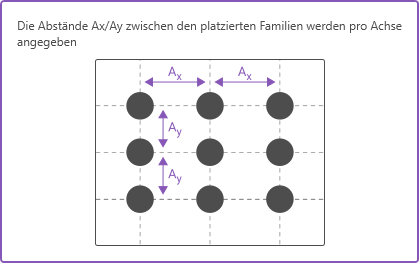
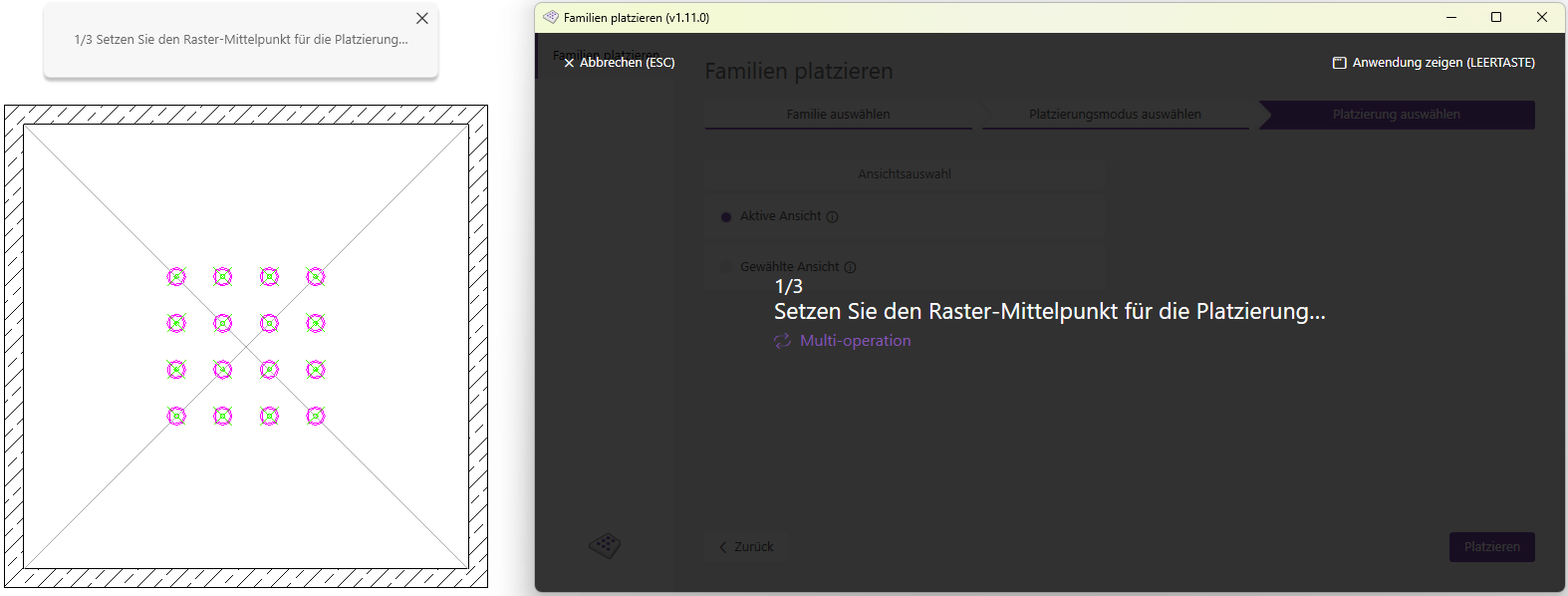
    Define a fixed distance as well as the Number of familiesBoth settings are applied per axis. The families will later be placed based on the selected center point.
    familien_platzieren_raum_fixe_anzahl_familien.png
    familien_platzieren_mittelpunkt_raster_abstand.png
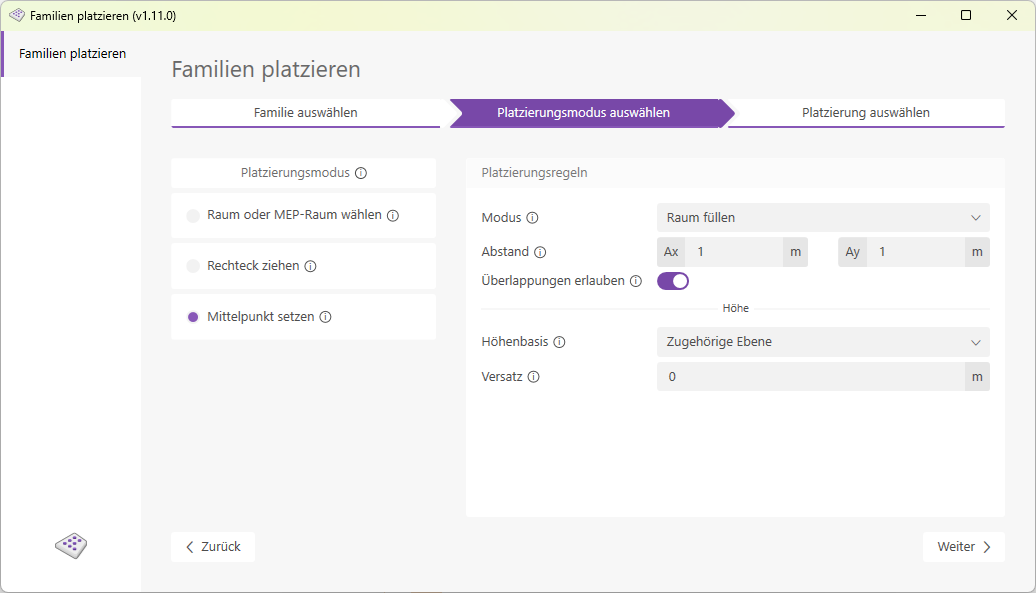
  • Control mode: Fill room:
  • familien_platzieren_mittelpunkt_raum_fuellen.png
    The elements are arranged in a fixed, definable Distance placed relative to each other. The "Allow Overlap" checkbox determines whether the placed families are allowed to overlap the room boundary.
    familien_platzieren_mittelpunkt_raster_abstand.png
  • Height Base:
    Select one of five options here to define the base for the placement height.
    • Absolute Zero
      Place at elevation zero, starting from the project base point.
    • Lower room boundary (floor slab)
      : Place at the lower room boundary or floor slab.
    • Upper room boundary (ceiling)
      : Place at the upper room boundary or ceiling.
    • Associated Level
      : Place at the associated level of the respective placement area.
    • Selected Level
      Place on a selected level.
  • Offset:
    Relative offset from the elevation baseline.
    • Click the "Place Families" button to launch the add-in.
    familien_platzieren_button.png
    A window with the user interface will open.
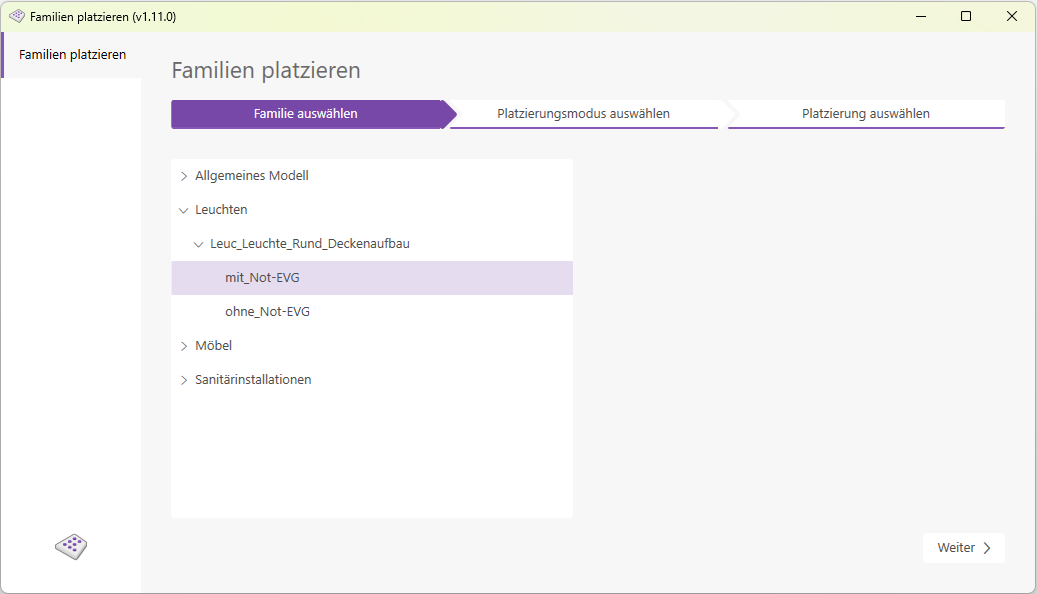
  • Select a family and click the Next button.
  • familien_platzieren_auswahl.png

    • Select one of the three placement modes and configure the placement rules.
    familien_platzieren_platzierungsmodus.png
    familien_platzieren_rechteck.png
    familien_platzieren_mittelpunkt.png
    • Click the Next button once you have configured all settings.
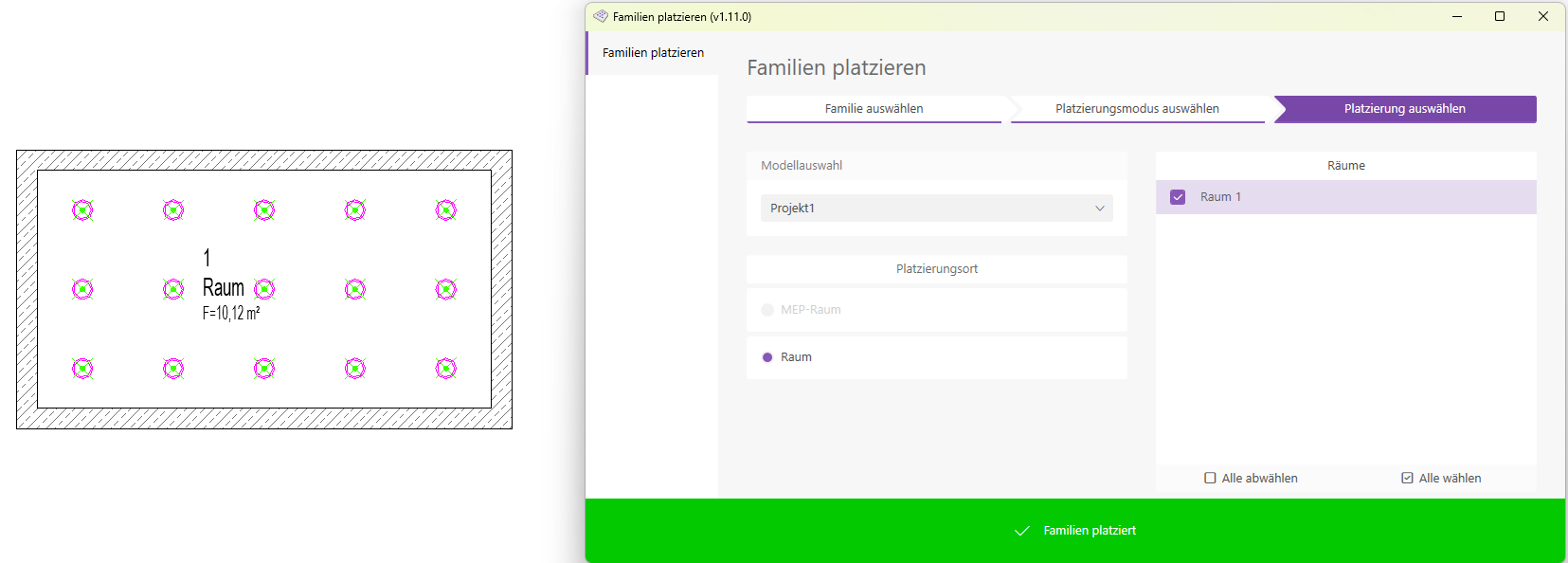
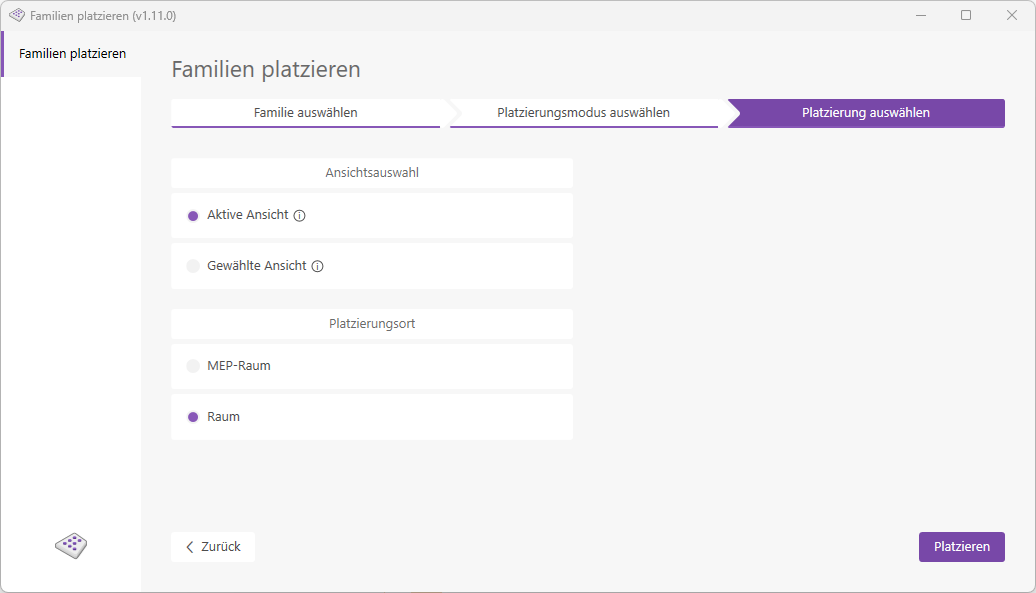
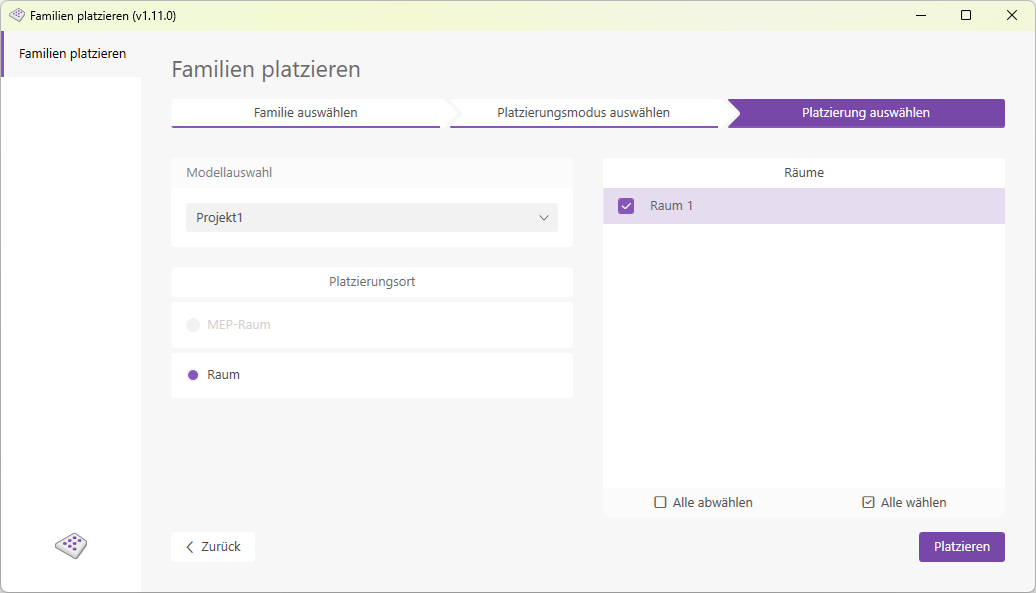
    • The final page, "Select Placement," will now open.
    • Select the model and room type, then choose as many rooms as you like for placement.
      Next, click Place.
    familien_platzieren_raum.png
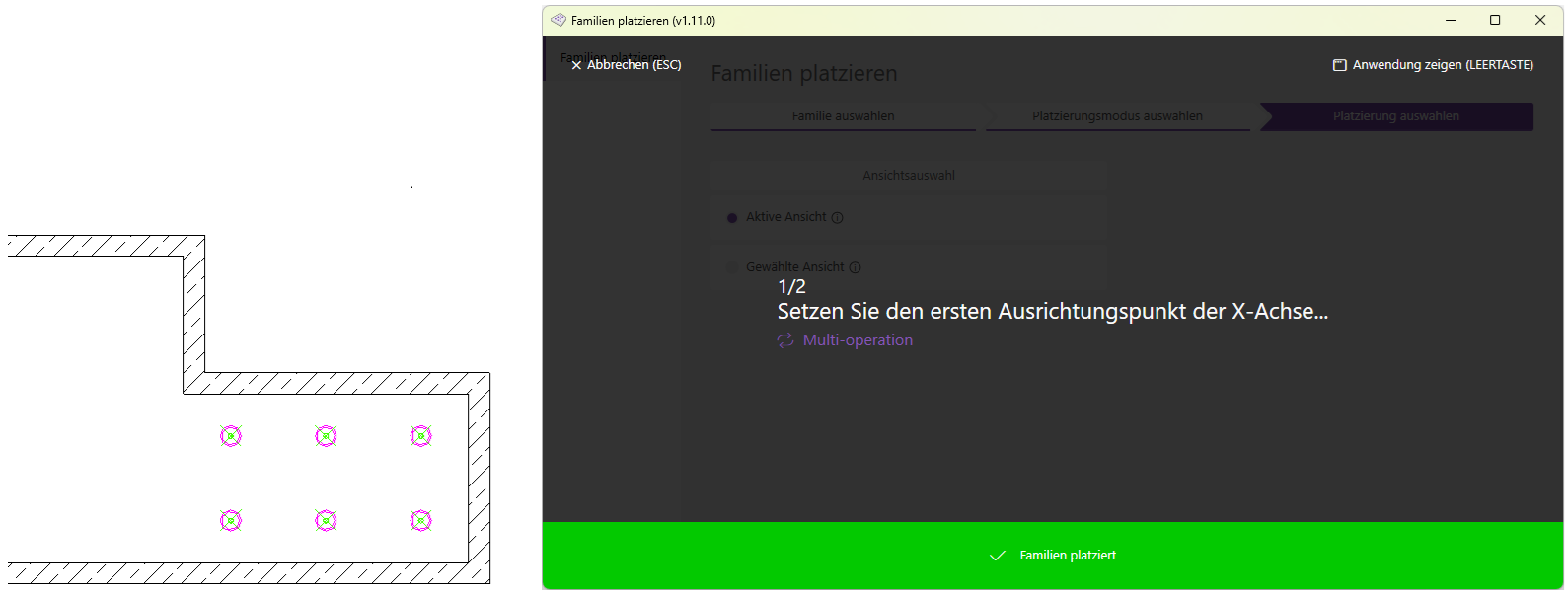
  • For rooms whose boundaries run parallel to the project coordinate system, the families will now be placed according to the settings you have specified. The green status bar at the bottom of the user interface confirms that the placement was successful.
  • familien_platzieren_erfolg.png
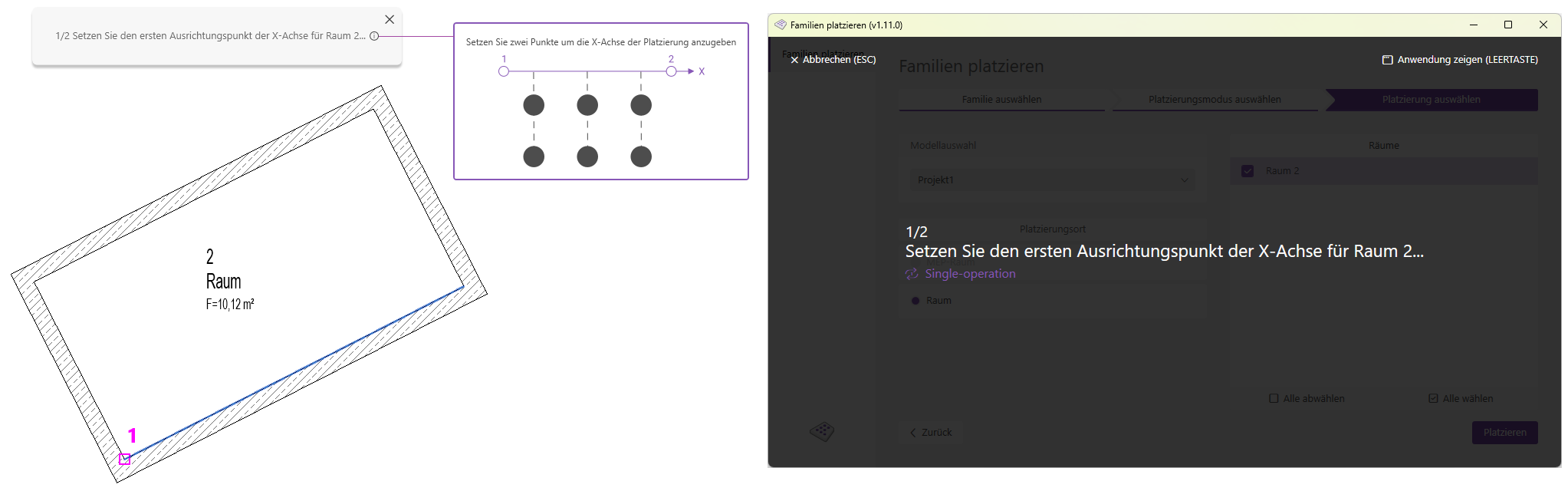
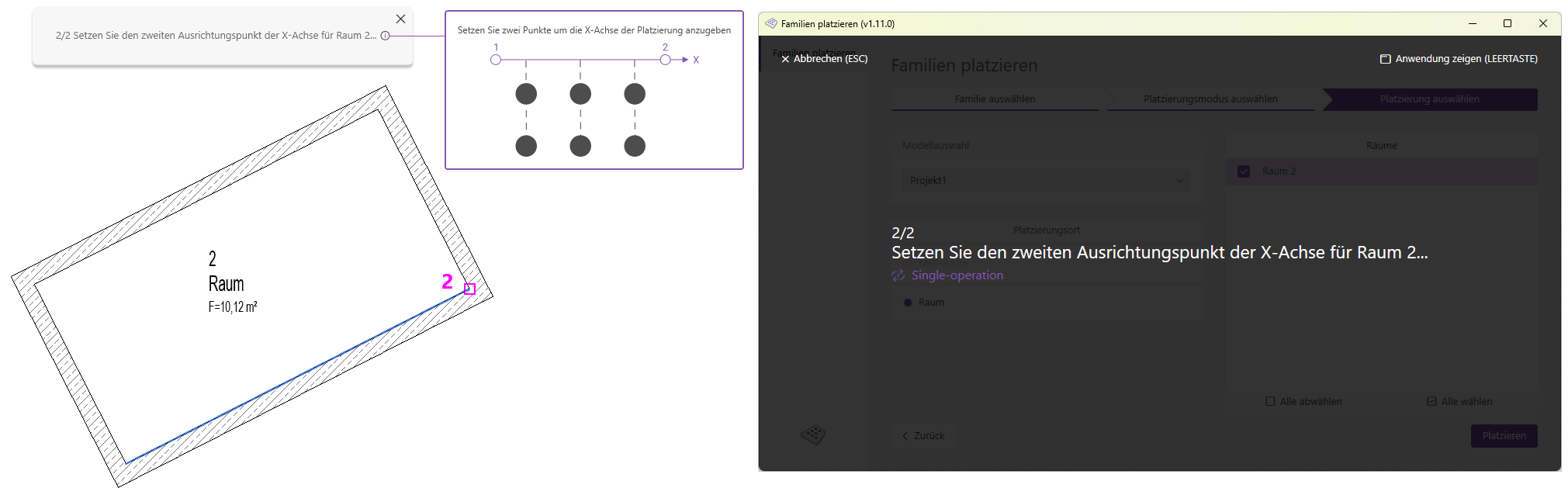
  • For rooms whose boundaries are not parallel to the project coordinate system, a prompt will now appear. You will be asked to specify the placement direction. Now select a start point and an end point; the resulting line indicates the placement direction. In this example, we select existing points—the endpoints of the room’s longest boundary line—which we can easily select using the snap function.
  • familien_platzieren_raum_schraeg_1_inkl_fenster.png
    familien_platzieren_raum_schraeg_2_inkl_fesnter.png
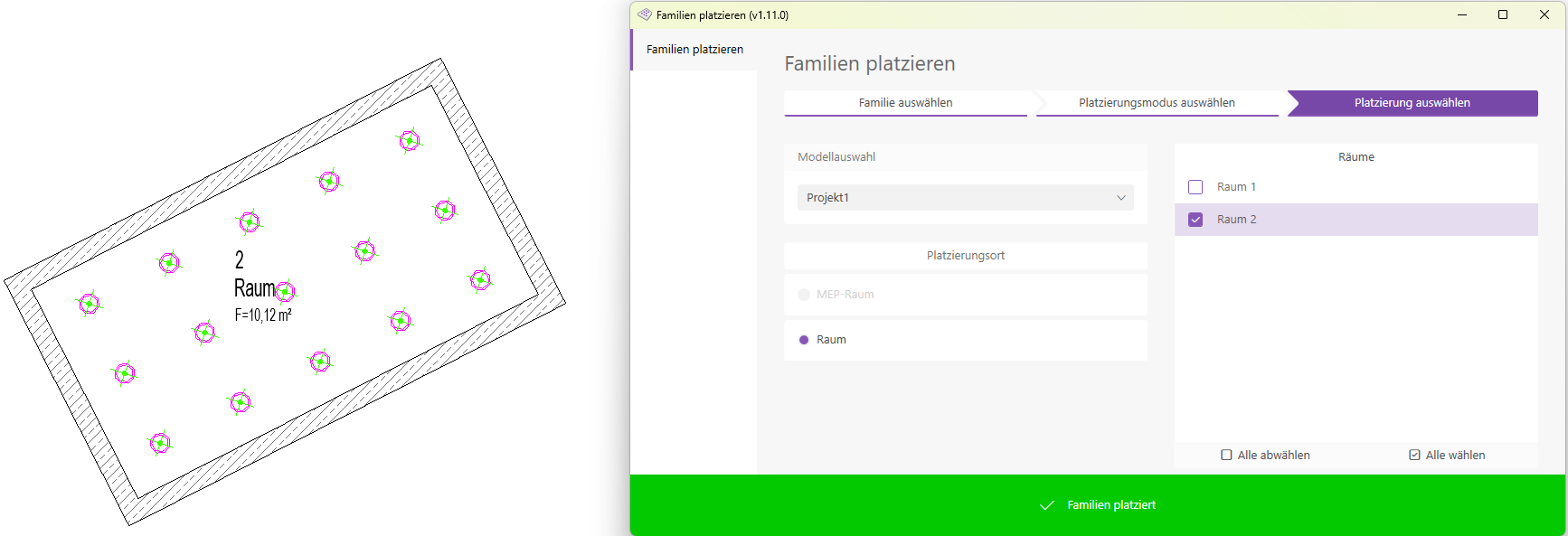
    The families will now be placed according to the settings you have selected.
    familien_platzieren_raum_schraeg_erfolg.png
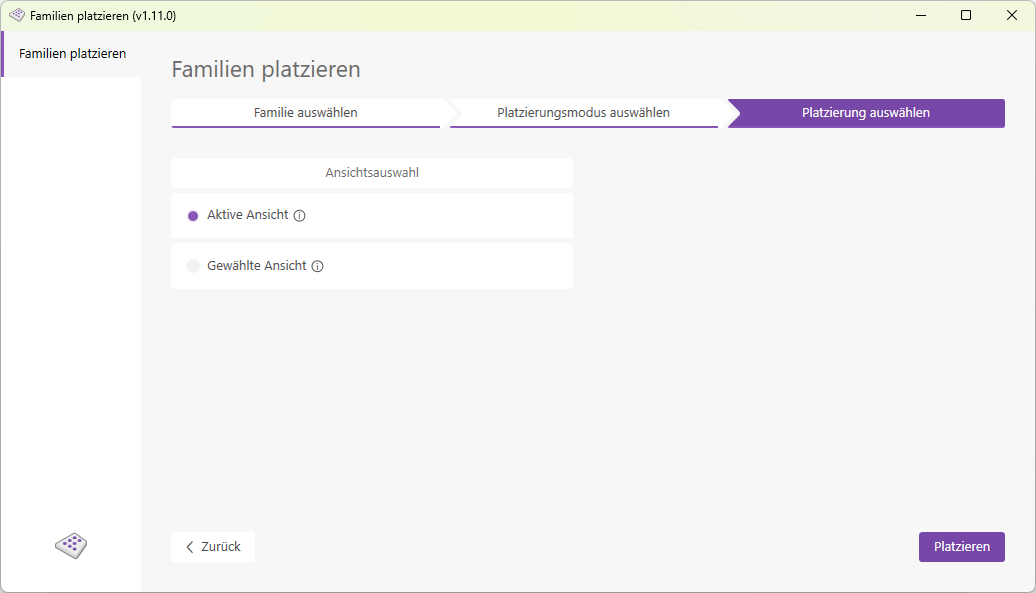
    • Choose between the "Active View" and "Selected View" placement modes. In "Selected View" mode, all views in the model are displayed in a list, and the selected view is then opened for you.
    familien_platzieren_rechteck_modus.png
    familien_platzieren_rechteck_gewaehlte_ansicht.png
  • Click the "Place" button to switch to selection mode.
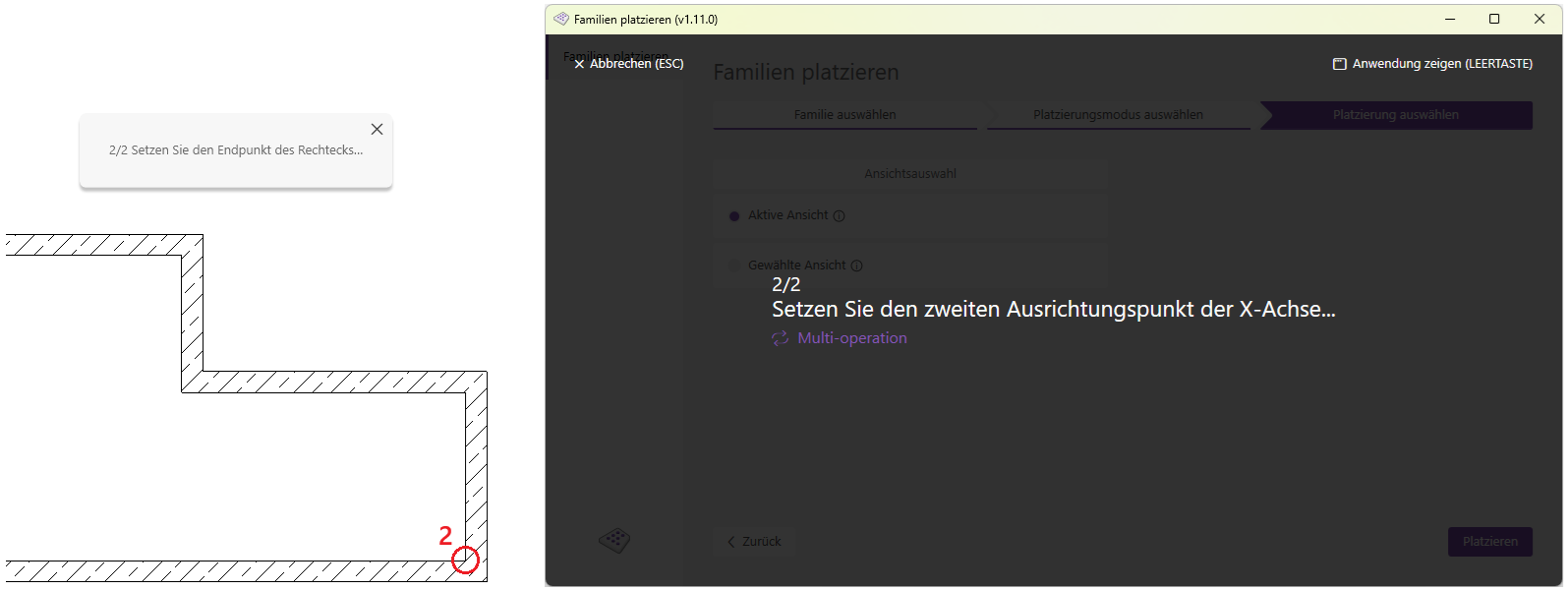
  • You are now in selection mode; select a start point and an end point to define a rectangle. The families will now be placed according to the settings you have specified. The green status bar at the bottom of the user interface confirms that the placement was successful.
    Note: You are still in selection mode! You can now define new rectangles and place families as often as you like. The process does not end until you exit it using the Escape key or the Cancel button, or when you close the add-in.
  • familien_platzieren_rechteck_auswahl_1.png
    familien_platzieren_rechteck_auswahl_2.png
    familien_platzieren_rechteck_auswahl_3.png
    Note: The add-in's user interface is minimized during the selection process if it is on the same screen as the Revit window. However, if necessary, you can move the user interface to a different screen to keep it visible during the selection process.
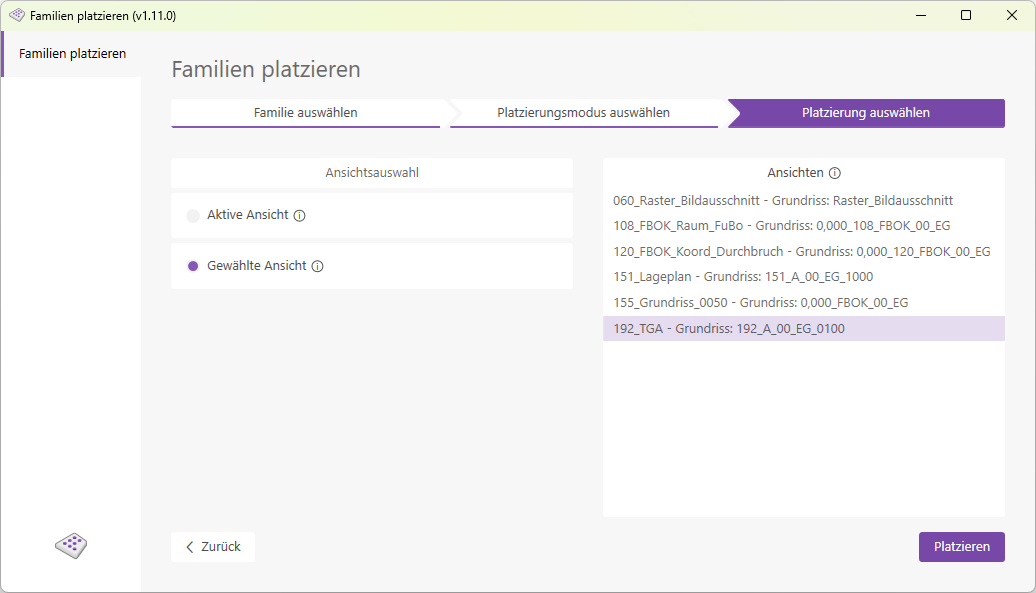
    • Choose between the "Active View" and "Selected View" placement modes. In "Selected View" mode, all views in the model are displayed in a list, and the selected view is then opened for you.
    familien_platzieren_rechteck_modus.png
    familien_platzieren_rechteck_gewaehlte_ansicht.png
    Note: If you selected Placement Rule Mode on the previous page Fill the room In addition to the view, you must also select a room:
    familien_platzieren_mittelpunkt_raum_fuellen_platzierung_auswaehlen.png

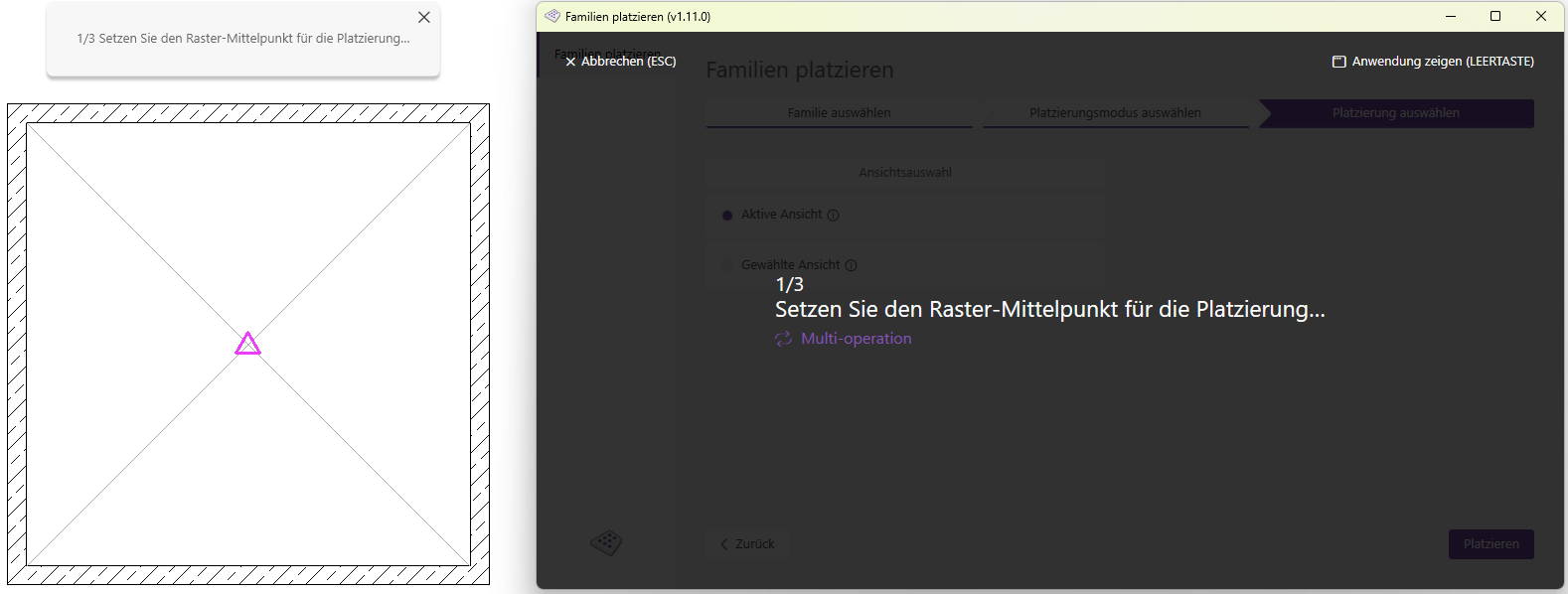
    • Click the Place button to enter selection mode.
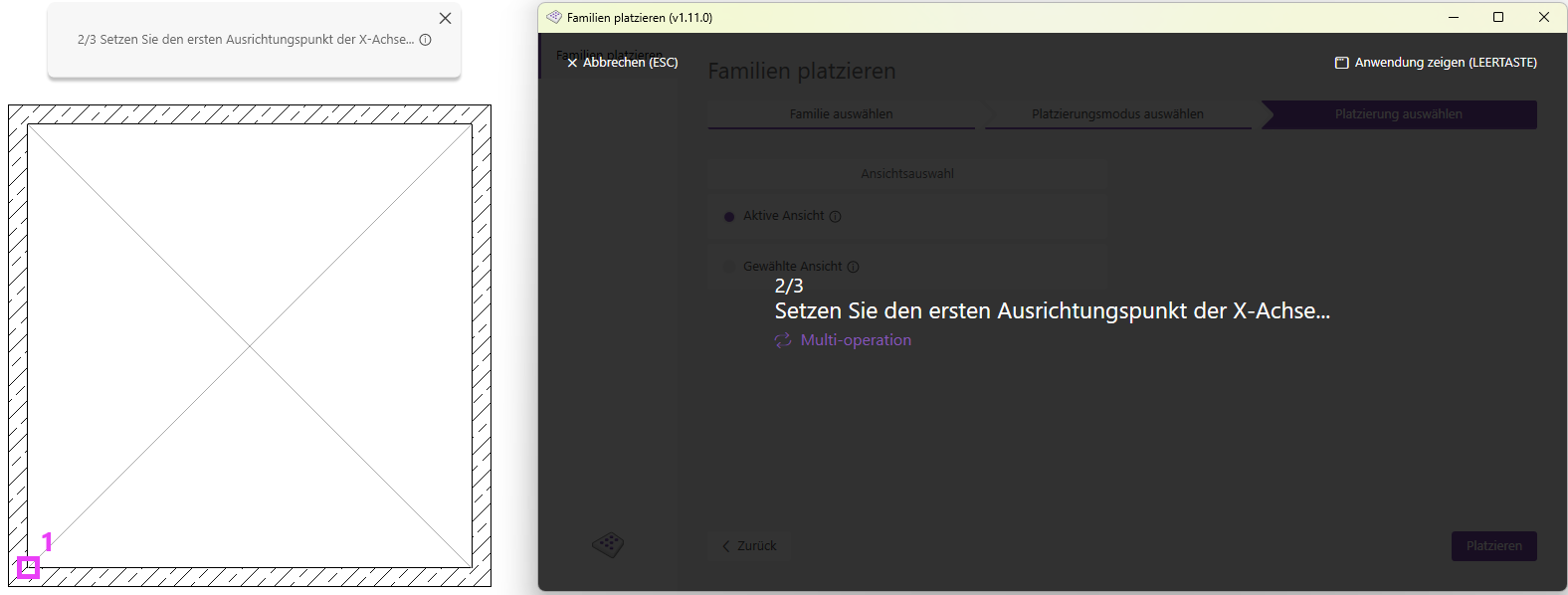
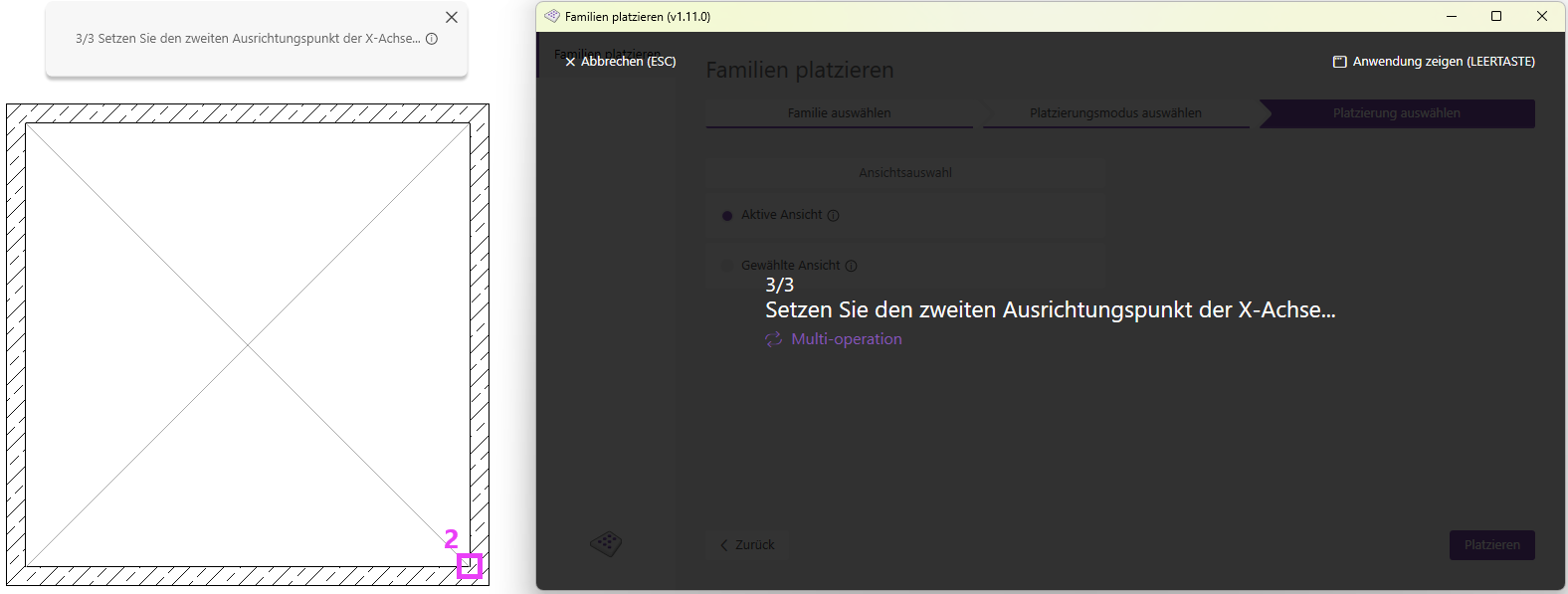
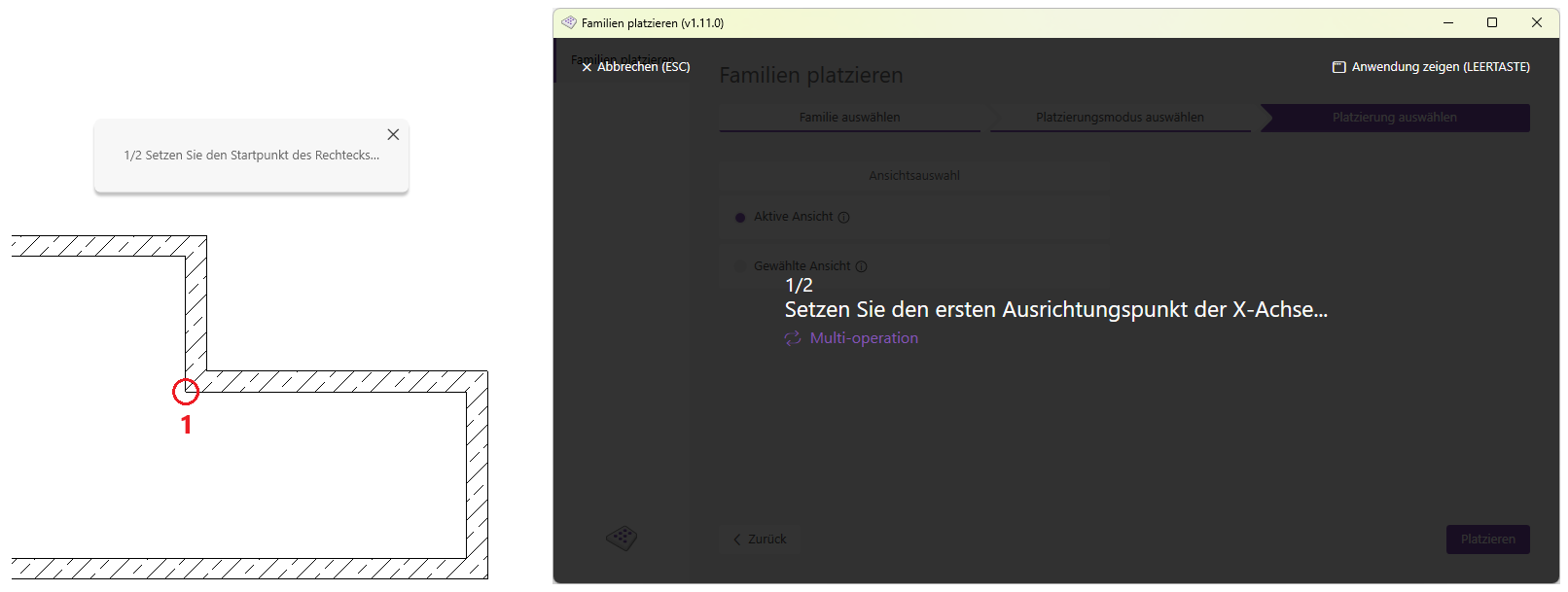
    • You are now in selection mode; first select a center point for placement. In the next step, select a start point and an end point; the resulting line indicates the placement direction. The families will now be placed according to the settings you have made.
      Note: You will remain in selection mode after placing! You can now define new center points and place families as often as you like. The process does not end until you exit it using the Escape key or the Cancel button, or when you close the add-in.
    familien_platzieren_mittelpunkt_auswahl_1.png
    familien_platzieren_mittelpunkt_auswahl_2.png
    familien_platzieren_mittelpunkt_auswahl_3.png
    familien_platzieren_mittelpunkt_erfolg.png
    Note: The add-in's user interface is minimized during the selection process if it is on the same screen as the Revit window. However, if necessary, you can move the user interface to a different screen to keep it visible during the selection process.

    1.13.0.0

    • Revit 2026.0 through 2026.4 is now supported.
    • The info icon opens the BIMpedia article.
    • Pressing the F1 key opens the BIMpedia article.

    If you have any problems or questions, or if you have ideas or suggestions, please feel free to contact our customer service team. We look forward to hearing your suggestions for improvement!