
"Transfer Filters" transfers view filters—including graphical overrides—from an active or external model to the view templates of the active model.
To load this content, you need to allow the YouTube service.
Manually adding filters to multiple view templates can quickly become tedious work. Revit does not offer native batch processing for filters—they must be recreated and configured individually in each view template. It becomes particularly tedious when graphical overrides such as colors, line types, or fill patterns also have to be applied manually.
- Increased efficiency through batch processing
- Reduction of sources of error by eliminating manual entries
- Time savings in project preparation and maintenance
- Use of existing standards from other projects or templates
With this add-in, you can:
- Select filters from the currently open model or an external Revit file
- Apply the desired filters, including graphical overrides
- Select target view templates from a list (multiple selections allowed)
To run the add-in, click the "Apply Filter" button.
Apply Filter
Source:
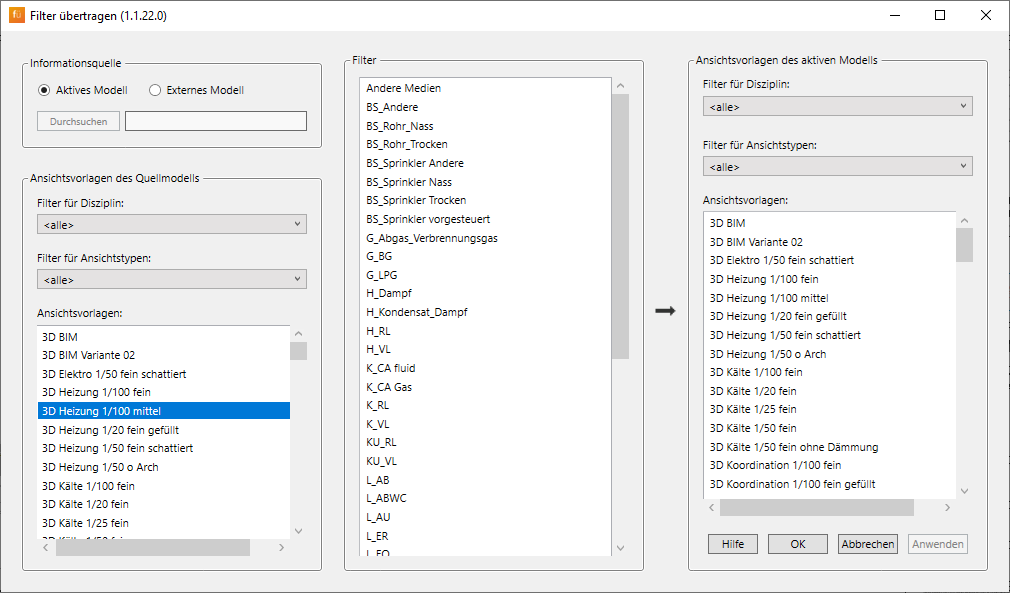
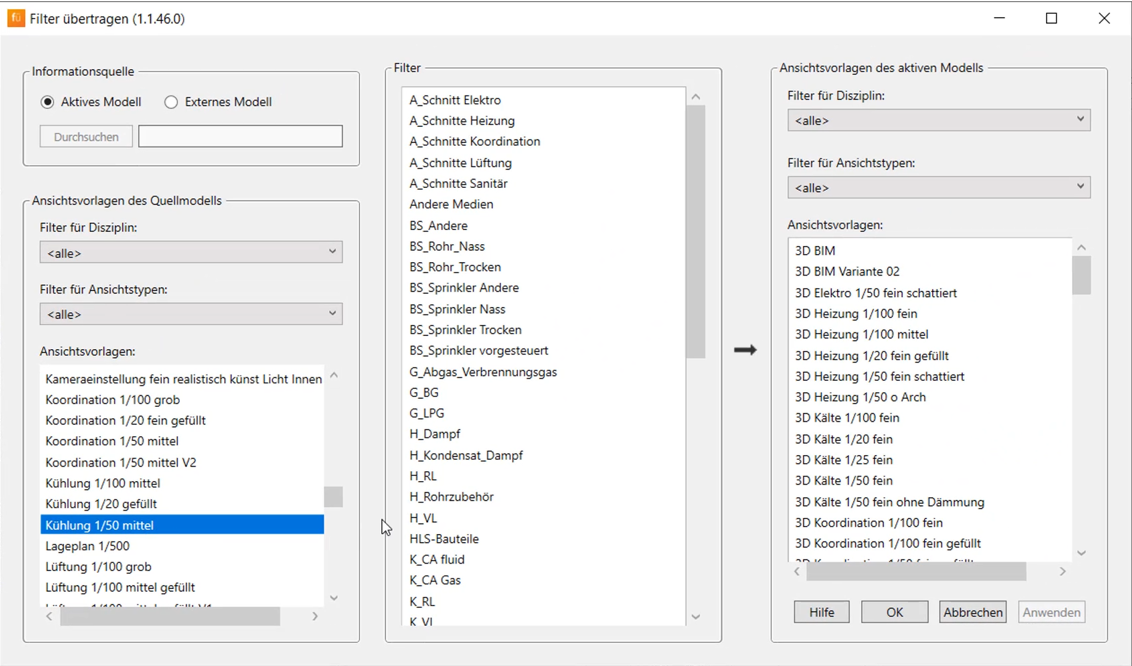
First, in the "Information Source" group box, select whether you want to use filters from the active model or an external model. If you select "External Model," the "Browse" button becomes active, and you can specify the path to the desired model.
Note: External models must be opened in the background (invisible to the user) in order to import filters from them. The loading time is roughly the same as it would be if the models were opened manually.
View templates for the source model:
The View Templates group box in the source model now displays the view templates for the selected model. Filter the list as needed and select a view template. All filters for this view template are now displayed.
Filters of the source model:
Now select all the filters you want to transfer. You can select as many filters as you like using the keyboard shortcuts Ctrl + click and Shift + click.
View templates for the active model:
Finally, select the view templates to which you want to apply the filters. You can select as many view templates as you like; use the familiar keyboard shortcuts again.
By clicking the OK or Apply button, you can now start transferring the filters. A successful transfer is indicated by the message "Filter transfer complete."
1.10.0.0
- Revit versions 2026.0 through 2026.4 are now supported.
- Pressing the F1 key opens the BIMpedia article.
- Filters and graphical overrides can only be transferred between view templates, not to the views themselves.
- The original order of the filters is not preserved during transfer.
If you have any problems or questions, or if you have any ideas or suggestions, please feel free to contact our customer service team. We look forward to hearing your suggestions for improvement!