

This tool helps you automatically translate Office documents—including Word, PowerPoint, and Excel files—as well as PDF files. You can choose from all of DeepL’s languages!
To load this content, you need to allow the YouTube service.
Even though Office now offers some automated features for translating content, the work still involves a lot of tedious copy-and-paste tasks, and it’s not uncommon for the formatting of text blocks to be lost...

- Translate, proofread, and edit texts and documents—quickly and directly within a single application
- Supported formats:
- Microsoft Word (.docx)
- Microsoft Excel: (.xlsx, .xlsm)
- Microsoft PowerPoint: (.pptx)
- PDF: (.pdf)
- Batch processing: Process multiple files at once
- Direct text entry: Conveniently enter content in the editor and have it translated or edited immediately
- Intuitive user interface with visual navigation and drag-and-drop functionality
- All languages supported by DeepL are available
This tool allows you to quickly translate, proofread, and edit the style of texts and documents using an intuitive user interface.
Translate files
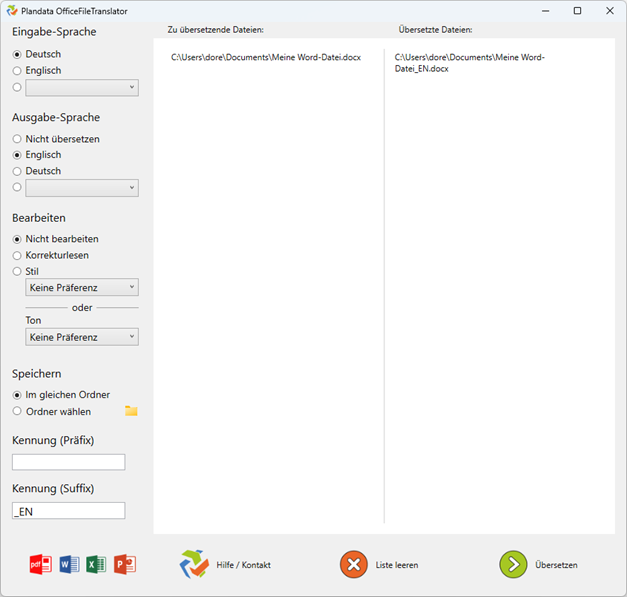
First, click the "Select File(s)" button to select one or more files you want to translate. Alternatively, you can drag and drop files into the white area at the top of the application.
After adding the files, additional options will be available in the left sidebar. Here, you can specify a save path for the files to be translated and define an identifier (prefix or suffix) to be appended to the file names.
Under "Input Language," select the language in which the selected file is written.
Next, under "Output Language," select the language into which the file should be translated.
If you do not want a translation, but only proofreading or editing for style and tone, select the "Do not translate" option.
In the "Edit" section, you can also specify whether the text should be proofread or whether the style and tone should be adjusted.
Once you have configured all the desired settings, start the process by clicking the "Translate" button in the lower-right corner.
Once the translation is complete, the corresponding files are highlighted in green in the list.
Files that have already been translated will not be processed again if you click the "Translate" button again.
You can then clear the list or add more files to create additional translations.
Translate texts
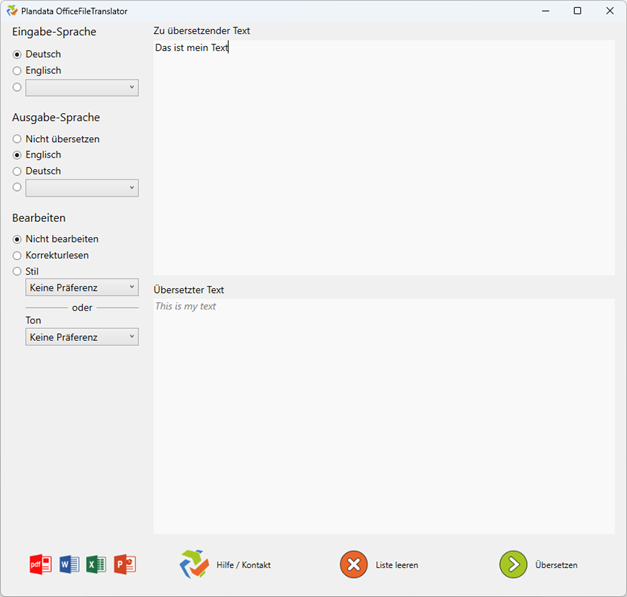
Enter the text you want to translate in the white area at the top of the application.
The translated text will appear in the lower white area once the process is complete.
Click the button below to copy the translated text to the clipboard.
Under "Input Language," select the language in which the text you entered is written.
Next, under "Output Language," select the language into which you want the text to be translated.
If you do not want a translation, but only proofreading or editing for style and tone, select the "Do not translate" option.
In the "Edit" section, you can also specify whether the text should be proofread or whether the style and tone should be adjusted.
Once you have configured all the desired settings, start the process by clicking the "Translate" button in the lower-right corner.
If the text you entered is identical to the previously translated text, it will not be translated again.
Once the text has been successfully translated, it remains in the top input field and can be edited or replaced with new text as needed.
When translating PDFs, layouts may not be reproduced exactly, or fonts may change.
- Unfortunately, we have no control over this; unlike with Office formats, DeepL’s own engine is used here.
If you have any problems or questions, or if you have ideas or suggestions, please feel free to contact our customer service team. We look forward to hearing your suggestions for improvement!