
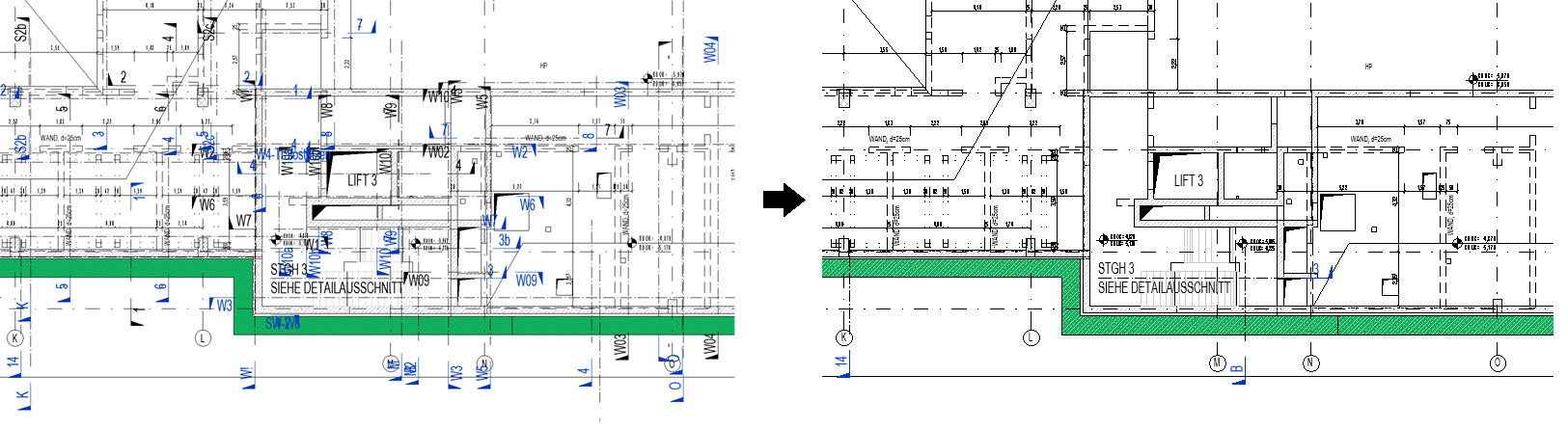
The View Filters by Sheet add-in automatically creates and applies view filters in views so that only relevant section lines are visible on sheets. This ensures a technically correct presentation and improves clarity.
To load this content, you need to allow the YouTube service.
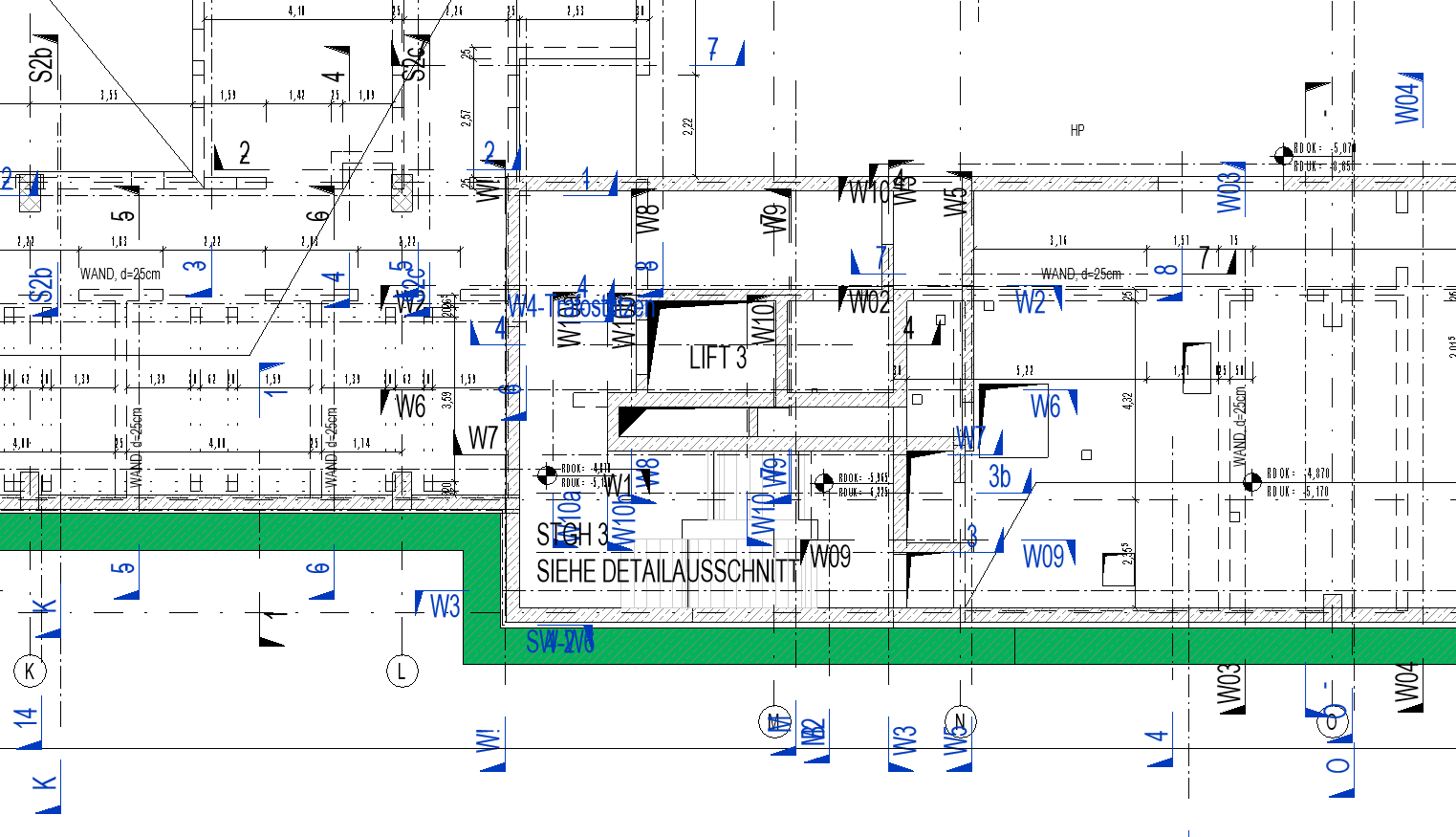
By default, Revit floor plans display all section lines and detail views, regardless of whether they are relevant to the current sheet. This results in cluttered sheets, increases coordination work and makes the model harder to work with. Because Revit offers many ways to hide elements, it can be difficult to determine why a section line or detail view is hidden.
- Clearer sheets: only relevant section and detail views are visible
- Automation saves time and avoids manual filtering
- Standardized filter names support consistent workflows
- Consistency across all project participants
- Improved readability and higher-quality final sheets
With this add-in, you can:
- Automatically create view filters for section lines
- Apply these filters based on the Sheet Number parameter (German: “Plannummer”)
- Automatically hide irrelevant elevation markers
- Generate filters with standardized names, such as “View_Ansichtsname beinhaltet nicht A104” (“View_View Name does not contain A104”)
Filter logic:
The tool automatically checks whether a matching filter already exists in the model.
- If the filter does not exist, it is created and applied.
- If the filter already exists, it is applied directly to the selected views.
The generated filter name follows this pattern: View_Ansichtsname beinhaltet nicht [Plannummer] (“View_View Name does not contain [Sheet Number]”).
Note: If the view template locks the filter overrides, a warning appears and the filter is not added to that view.
How the filter works:
The filter uses the View Name view parameter (German: “Ansichtsname”) and the Sheet Number sheet parameter (German: “Plannummer”).
The following categories are filtered:
- Sections
- Elevations
- Callouts
Visibility is turned off for these elements if they do not belong to the current sheet.
Example filter name:
Sheet Number: A104
Filter name: View_Ansichtsname beinhaltet nicht A104


This filter hides all section lines and callouts whose View Name does not contain “A104”.
Apply filters
- Open a sheet containing at least one placed view.
- Select the required views on the sheet.
- Click the “Viewfilter nach Plan” button (view filters by sheet; renamed to “Filter nach Plan” in version 1.4.1.0).

- The filter is created and added to the selected views.
1.4.0.0
- Revit 2026.0 through 2026.4 is now supported.
- Pressing F1 opens the BIMpedia article (tooltip).
1.4.1.0
- The Revit button has been renamed to “Filter nach Plan” (filter by sheet).
The add-in is designed for use with Plandata Revit Pro Content, with sheets and views named according to the Plandata BOA standard.
In particular, this add-in requires view names to contain the sheet number of the sheet on which the views are placed. Ideally, another add-in should generate the view names automatically and keep them up to date.
If you try to add a filter to a view whose view template controls the filter overrides, the following warning appears.
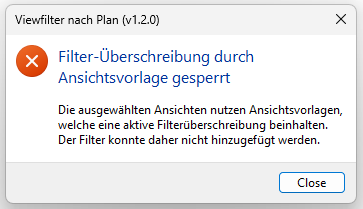
If you have any problems, questions, ideas or suggestions, please contact our customer service team. We welcome your suggestions for improvement.