

The "Tables" tool is an add-in that allows you to edit Revit tables in the Excel worksheet window—without having to first export the data from the Revit model to an Excel file. It also allows you to import the edited data back into the Revit model with a single click.
Revit categories that can be used: all linked Revit model categories
Types of data read from the list: all types of parameters (project, shared, family, and embedded) associated with the category in the Excel worksheet
Model preparation in Revit:
- Add all necessary parameters as project parameters (from the SharedParametersFile for the Excel spreadsheet), which will be used to compile the lists
- Fill in the parameters to be defined manually in the Revit model
"Tables" Tool Workflow:
- Select an Excel template
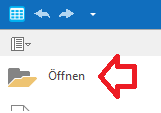
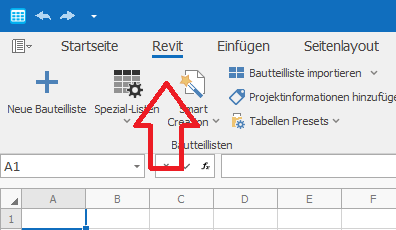
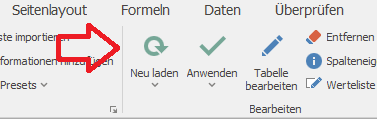
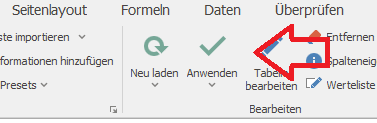
Features:
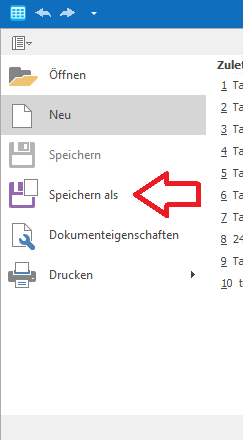
- Saving files containing results in the .xlsx file format
- An Excel template or Excel file can contain tables that are linked to one or more Revit models (even if these models are not related to each other), or “standalone” tables that are not linked to any model
- To format the tables in Excel, a specific number of rows can be locked—if necessary—to create a header row. These rows can be filled in as desired
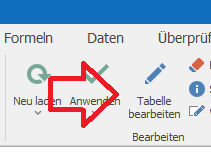
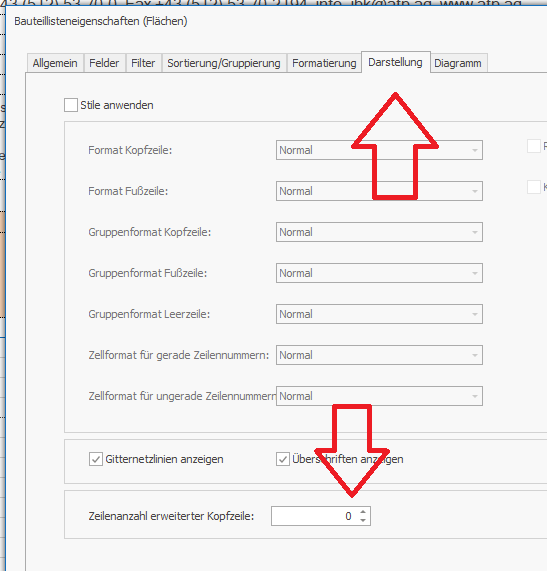
- The last column (hidden by default) of each linked table contains the item GUIDs (default setting)
Key benefits:
- Excel Formatting and Styles for Lists
- Ability to filter and sort rows in Excel
- Using Excel formulas to calculate parameters
- Additional Excel functionality
- Ability to create a workbook with actual data from the Revit model at any time using the templates
- All columns in a linked table must correspond to a parameter of the elements in the category used to create the table, or be a calculated column. (No option to create custom columns)
- Existing category data for a project must be uploaded when a model of that category is activated in the Revit application
- Some complex Excel templates require their own workflows, which are beyond the scope of this article

Unfortunately, this content is available only to our Pro users.
If you'd like to read the full article, try the Pro account or become a Pro user.