
The add-in allows you to create elevation marks and dimension chains in section views.
An additional feature is the ability to align existing elevation marks.
To load this content, you need to allow the YouTube service.
Placing elevation marks manually in Revit is error-prone and time-consuming—especially in section views that show an entire building with multiple stories. Aligning overlapping elevation marks and manually inserting dimension chains takes even more time and effort.
- Automatic placement of elevation marks and dimension chains, even across multiple stories
- Always placed on the correct Revit elements
- Automatic offsetting of overlapping elevation marks
- Wide range of configuration options
- Support for all major Revit categories in sections
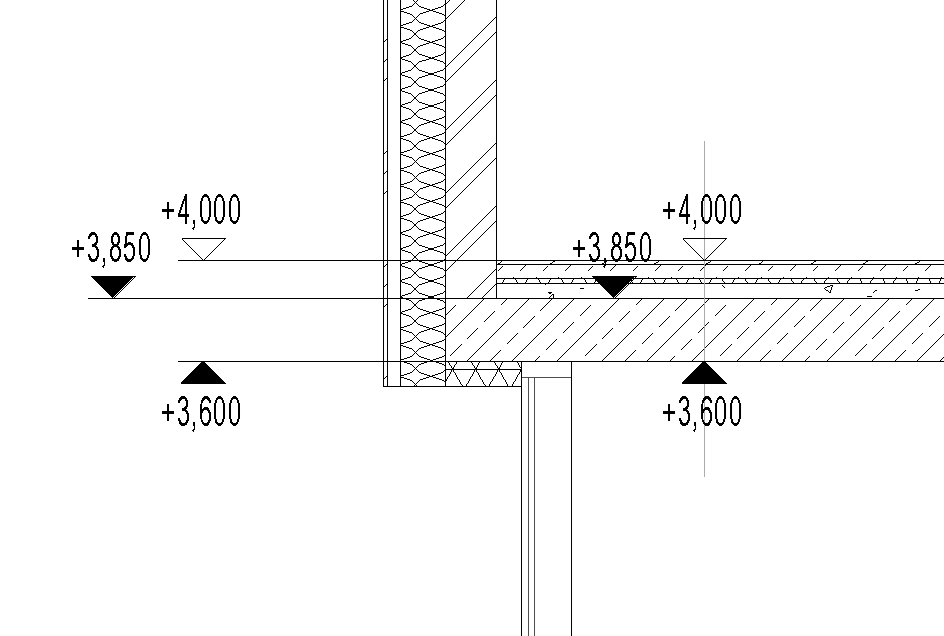
The tool places elevation marks and dimension chains at the intersections of Revit elements with detail lines or reference planes. Only intersected components from the following categories are taken into account
- Foundations
- Floors
- Walls
- Floors
- Roofs
- Landing
- Frame construction
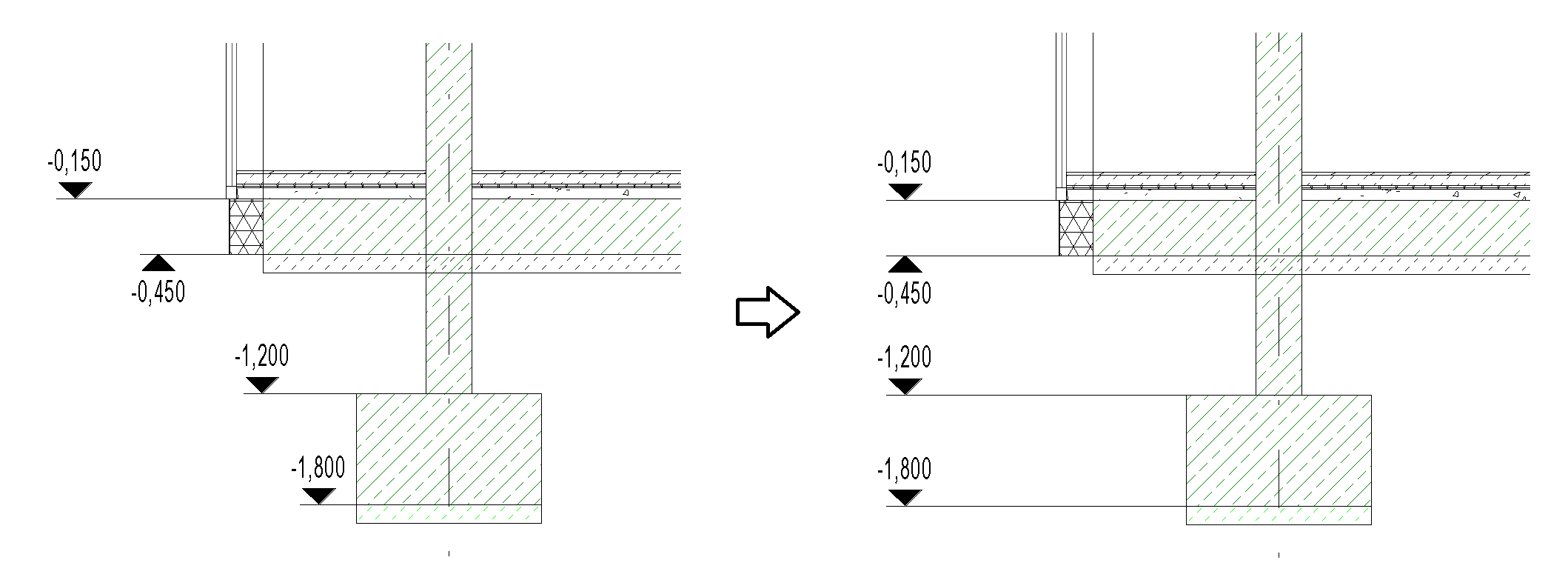
The following example illustrates placement with alignment (left) and without alignment (right).
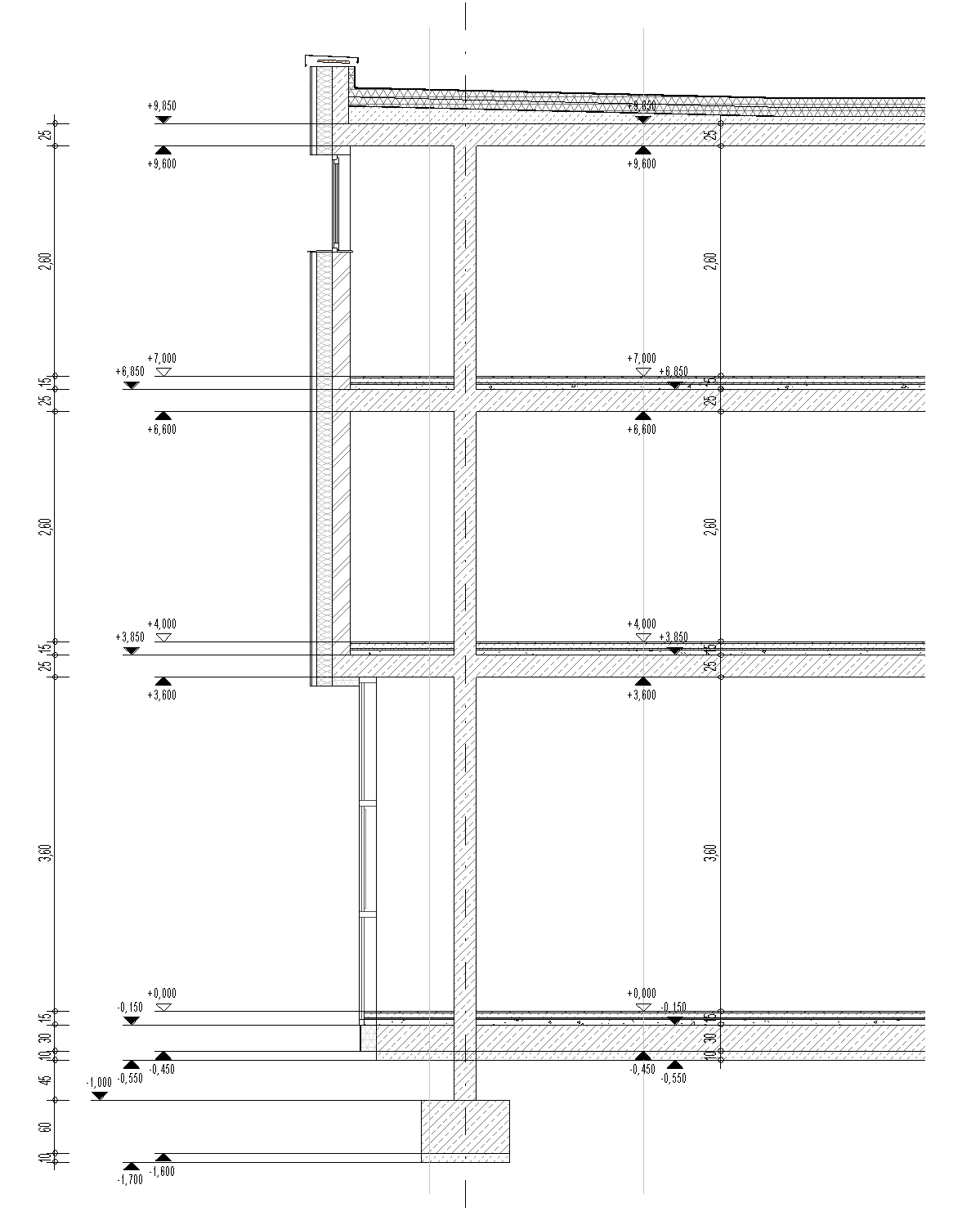
Overlapping elevation marks are automatically offset. Detail lines and reference planes are deleted after the elevation marks are placed.
Note: Sloped surfaces are ignored when placing objects.
With the "Align" feature, the tool allows you to align existing elevation marks along a line.
Click the "Place Elevation Markers in Section" button to open the add-in.
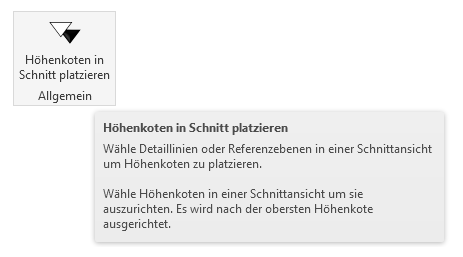
A brief description of the features is available in the add-in's tooltip.
Configuration
The add-in features a user interface with several configuration options.
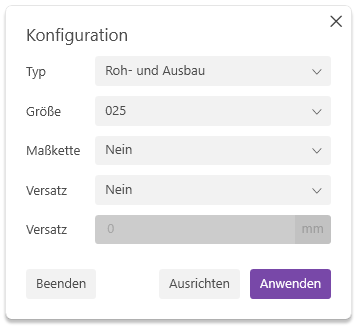
Type: Specifies whether elevation marks should be generated for the structural shell and/or the finish work.
Size: Sets the size of the elevation mark.
Dimension chain: Specifies whether a dimension chain should be created. If the "Standalone" option is selected, only dimension chains are placed; no elevation marks are included.
Indentation:
If "No" is selected, elevation marks are placed without a user-defined offset. Overlapping elevation marks are automatically offset to the right.
Note: With this setting, elevation marks are generated without guide lines.
If you select the "Left" or "Right" option, you can specify a custom offset.
Note: If a custom offset is entered, elevation marks are created using only the guide line. Overlapping elevation marks are automatically offset in the selected direction.
Tip: If you select the "Left" option without entering a custom offset, overlapping elevation marks will automatically be shifted to the left.
The following example shows a comparison between the "Left" placement with no offset (0 mm) and the "Left" placement with an offset (2000 mm). The line selected for placement is shown in gray.
Place
Select detail lines or reference planes in a section view. Now click the "Apply" button to start the placement process.
The elevation marks are now placed accordingly. Detail lines and reference planes are deleted after the elevation marks are placed.
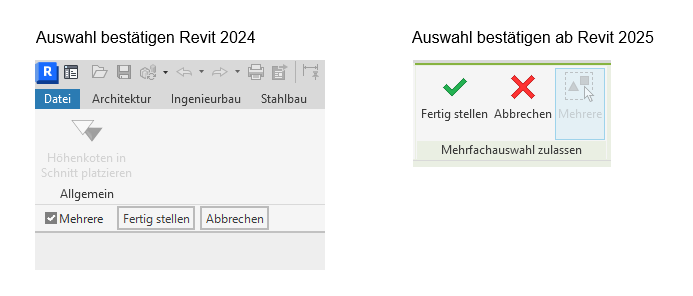
Note: If you click the "Apply" button without first selecting a detail line or reference plane, you will switch to Revit selection mode. You now have the option to select detail lines and reference planes. You can only exit this selection mode by clicking "Finish" or "Cancel." Selecting detail lines and reference planes in advance thus allows for a more efficient workflow.
Align
Select existing elevation marks to align them along a line. The top elevation mark always serves as the reference. This function is available via both the tool button and the "Align" button.
Tip: Assign a keyboard shortcut to the add-in in Revit. This allows you to select elevation marks and align them automatically using the shortcut without having to open the add-in.
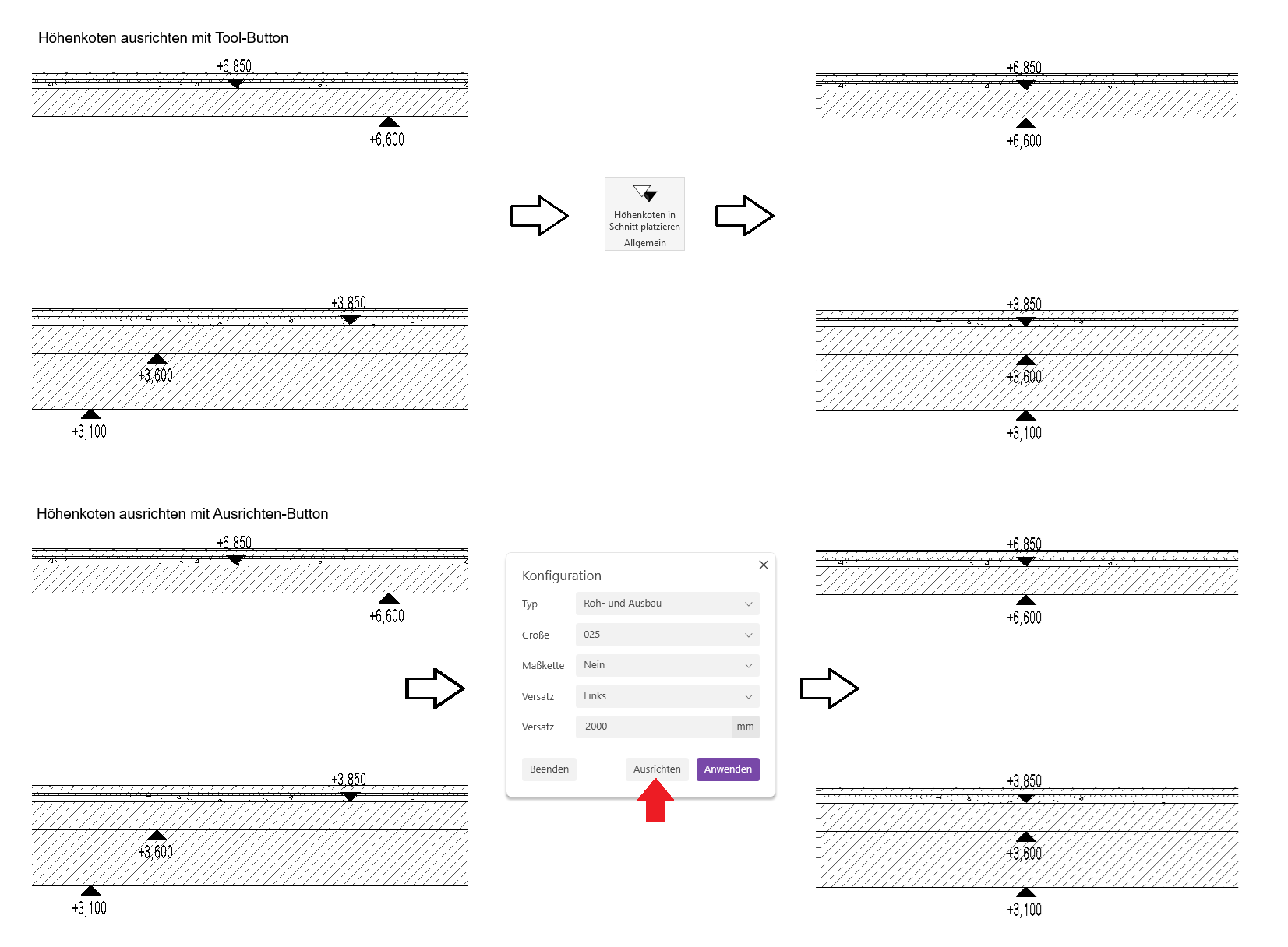
Elevation marks can also be aligned using guide lines.
1.8.0.0
- Revit 2026.0 through 2026.4 is now supported.
- The info icon opens the BIMpedia article.
- Pressing the F1 key opens the BIMpedia article.
The add-in is designed to work with Plandata's Revit Pro content.
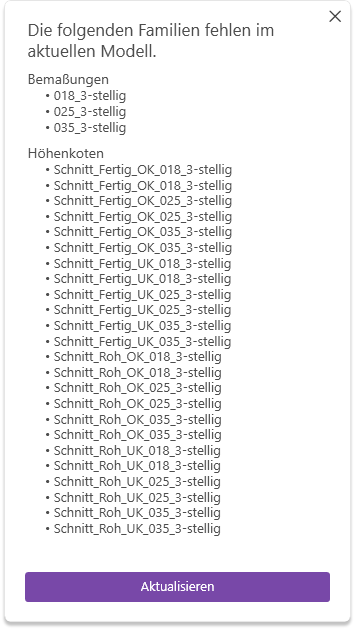
The following elevation and dimension types must be present in the model. If these types are missing from the model, a warning message will appear. Load these types into the model, then you can continue by clicking “Update” or after restarting the add-in.
Unfortunately, this content is available only to our Pro users.
If you'd like to read the full article, try the Pro account or become a Pro user.