
To load this content, you need to allow the YouTube service.
Revit has many limitations when it comes to creating legends:
- Legends must be created and updated manually (elements must be added and positioned)
- Symbols from system families are often not displayed correctly
- Symbols cannot be displayed independently of the scale (e.g., maximum available size in the legend or uniform size)
- Overrides are not applied
"Create Legends" provides a solution: With just a few clicks, you can generate the correct symbols for the placed family types, update existing legends, or create new ones. This is done using freely configurable templates, which enable standardized legend creation even in larger teams.
- Legends are created and updated at the touch of a button
- Only families included in the plan are considered
- All families are supported; symbols are not required
- Symbols are created for both point-based and line-based families
- Symbols are created based on the correct view (plan)
- Overrides are applied correctly
Creating Legends
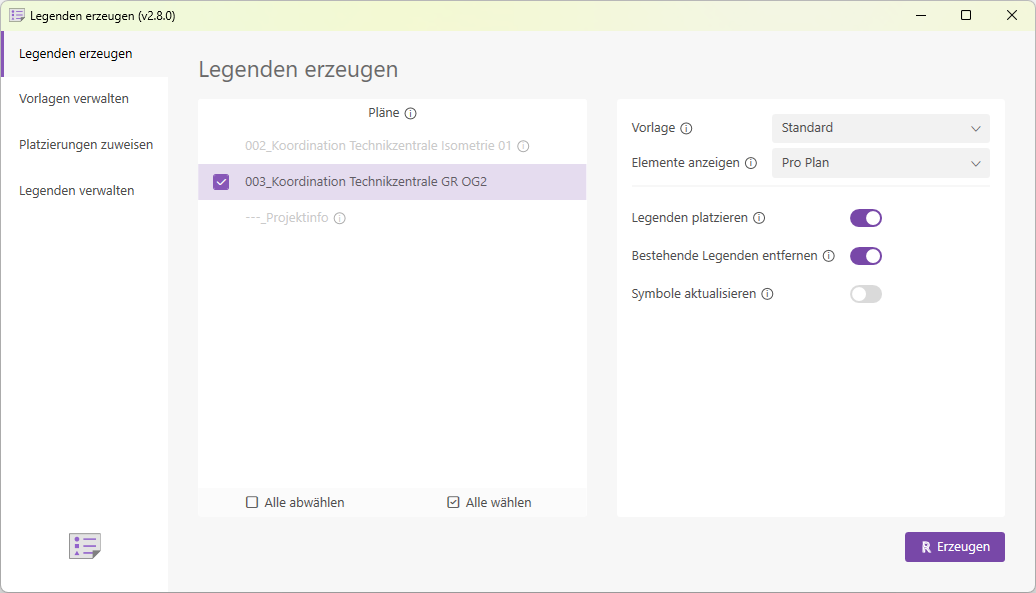
The "Create Legends" page offers a variety of selection and configuration options.
- Floor Plans
All floor plans in the model are displayed here in a list. Only those floor plans that have a top view placed on them are selectable. Floor plans without a top view are displayed in gray. - Template
The dropdown list displays all available templates. Templates can be created on the "Manage Templates" page. They contain all the settings required for generating the legend. - Show
Elements Two options are available:- The "Per Plan" option generates legends that display the elements present in the corresponding plan.
- The "From all selected plans" option, on the other hand, displays the elements of all selected plans in all legends.
- Place
Legends This switch determines whether the generated legends should be placed on the respective plan. - Remove
existing legends This switch determines whether existing legends should be removed from the plan. All legends placed on the plan will be removed, but they will remain in the model. - Update
Symbols Once a symbol for a family has been created using "Generate Legends," it is reused for subsequent legends. This checkbox allows you to update existing symbols. Select this checkbox if necessary, should you have made changes to the family that affect the symbol.
Manage Templates
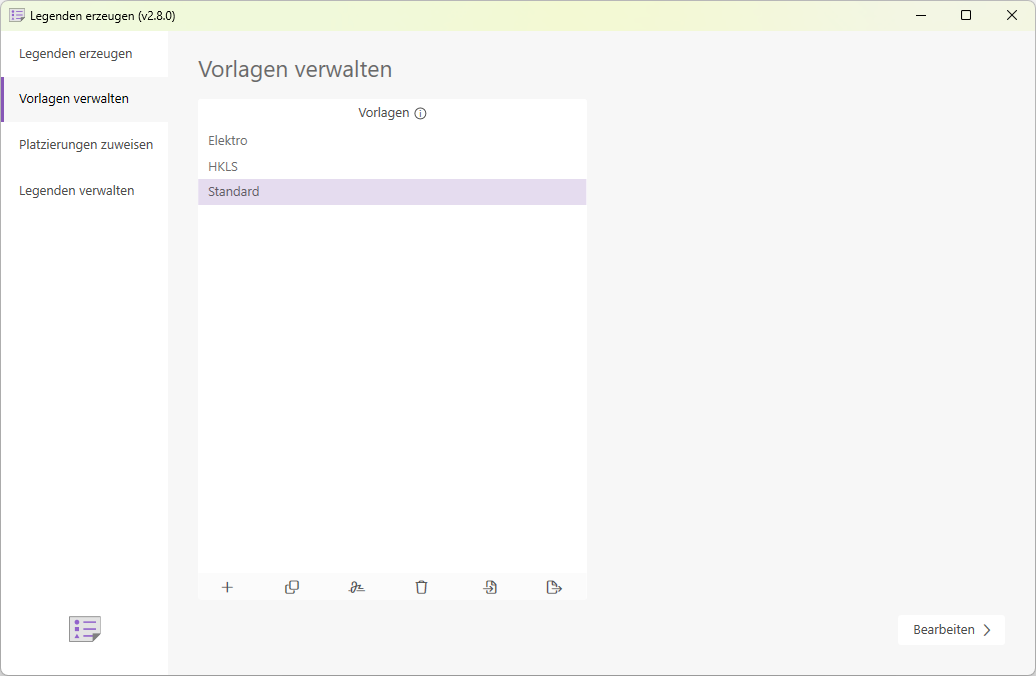
On the "Manage Templates" page, you can create, rename, duplicate, and delete templates. You can also import and export templates to use them across different models. When a template is selected, you can edit its settings.
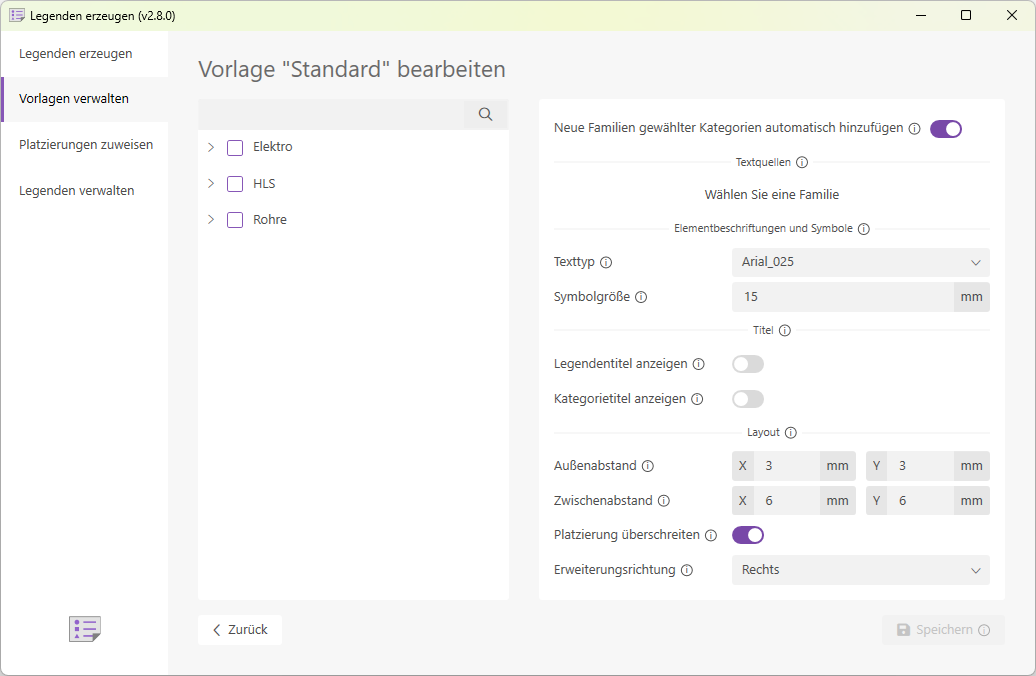
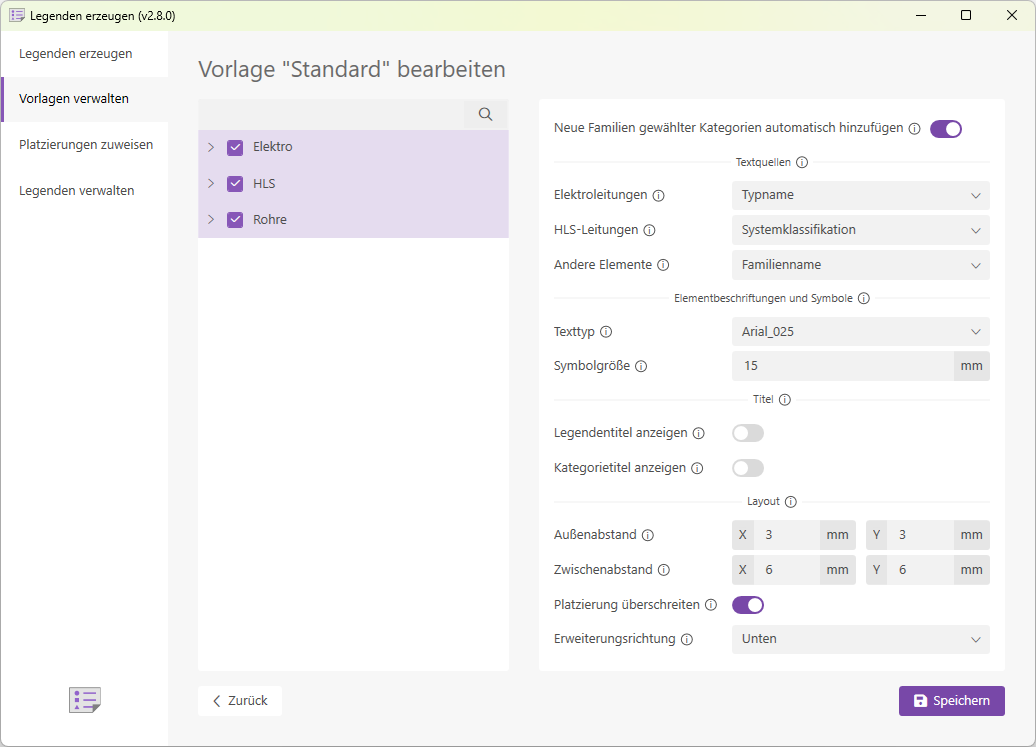
- Automatically add new families from selected categories

Sources: Use the drop-down lists to select the text to be used for the corresponding element in the legend.
- Electrical lines
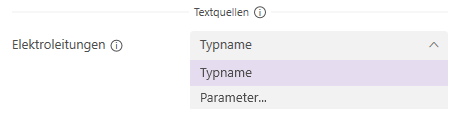
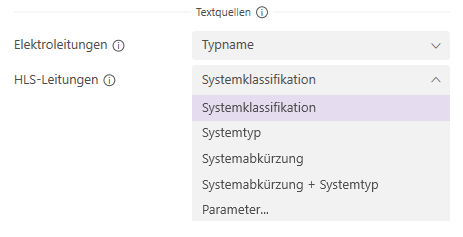
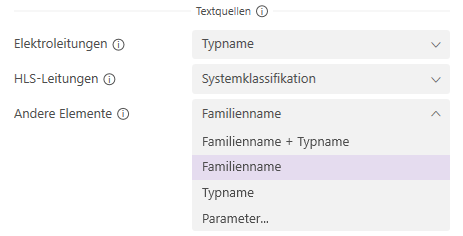
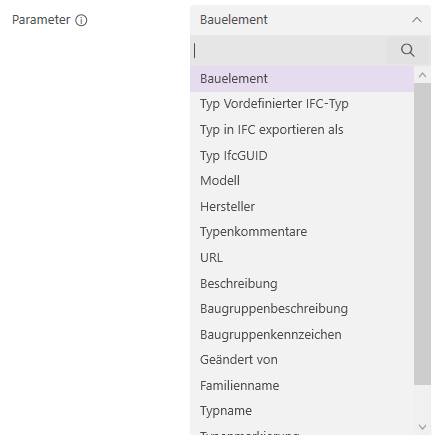
If you select a parameter as the text source, an additional drop-down list will appear for you to make your selection.
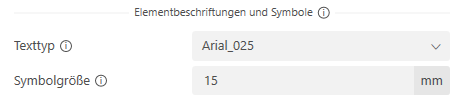
: Select the text type and symbol size for the labels in the legend
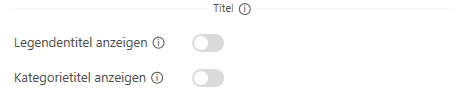
: Choose whether you want to label the legend with the word "Legend" as the title. You also have the option to display an additional title for the categories (Electrical, HVAC, etc.).
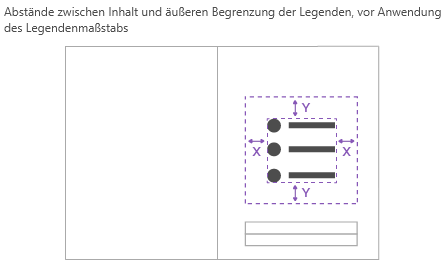
In the Layout section, you can specify the layout and spacing of the legend.
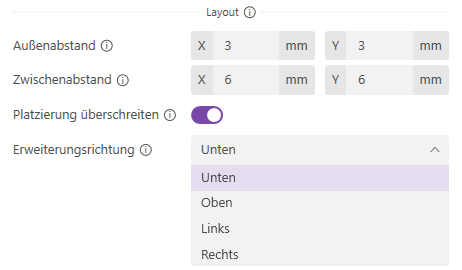
- Outer distance
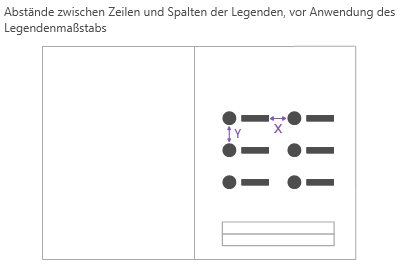
Placement Determines whether the placement area defined on the "Assign Placement" page may be exceeded.
Direction: Specify the direction in which the legend may expand if it exceeds the allocated space.
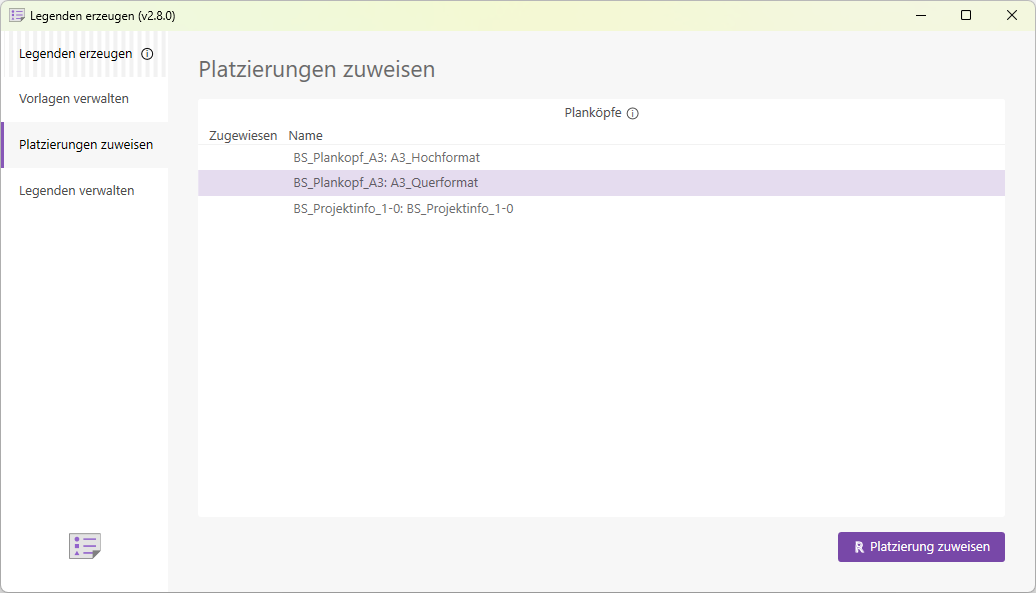
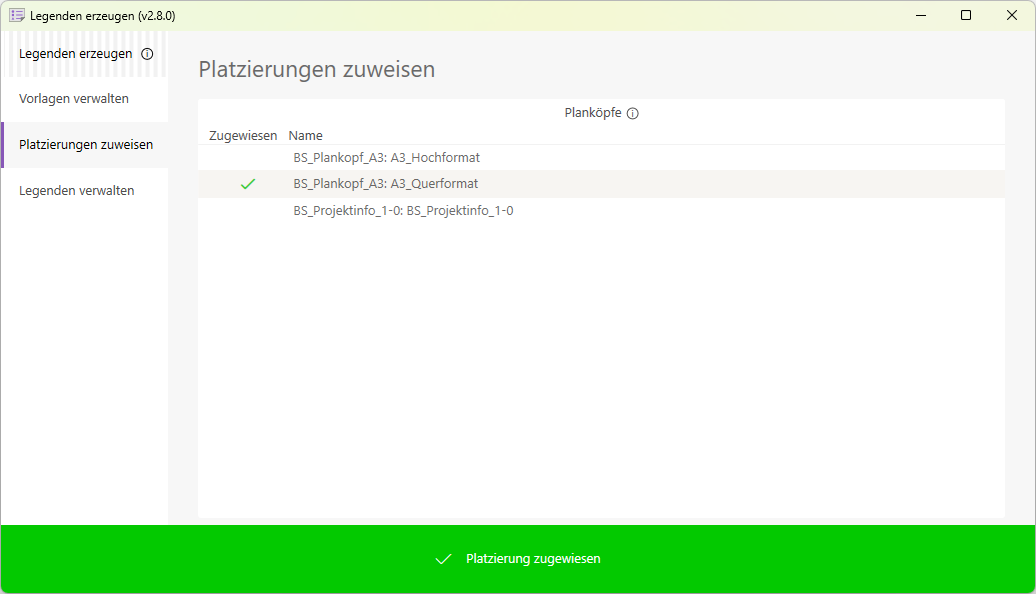
Assign a placement
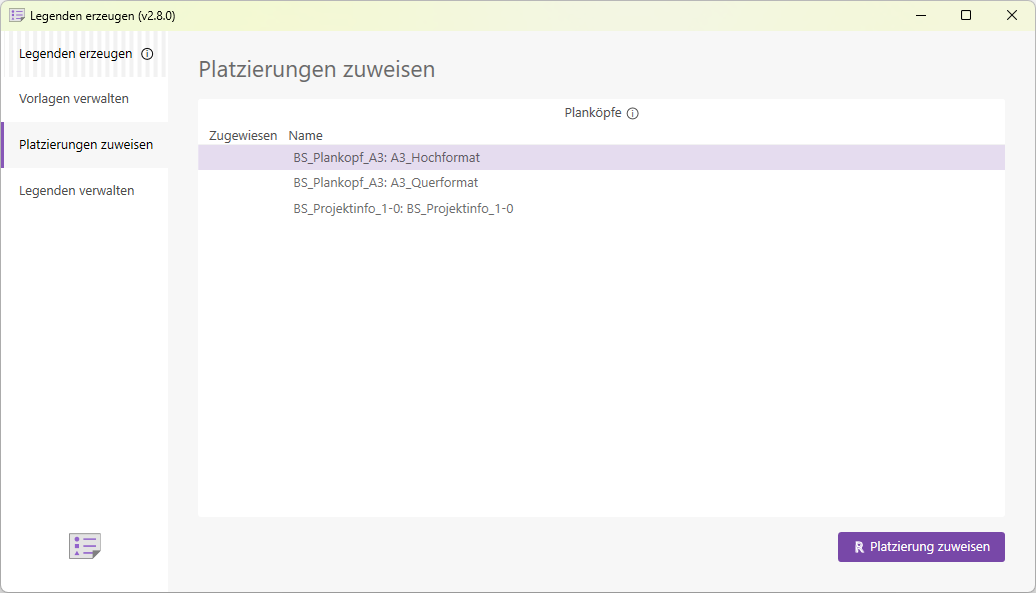
To place legends, you must assign appropriate positions to the legend headers. This page lists all legend headers in the model. For instructions on how to assign them, see the "Instructions" section of this article.
Manage Legends
This page provides an overview of all legends in the model.
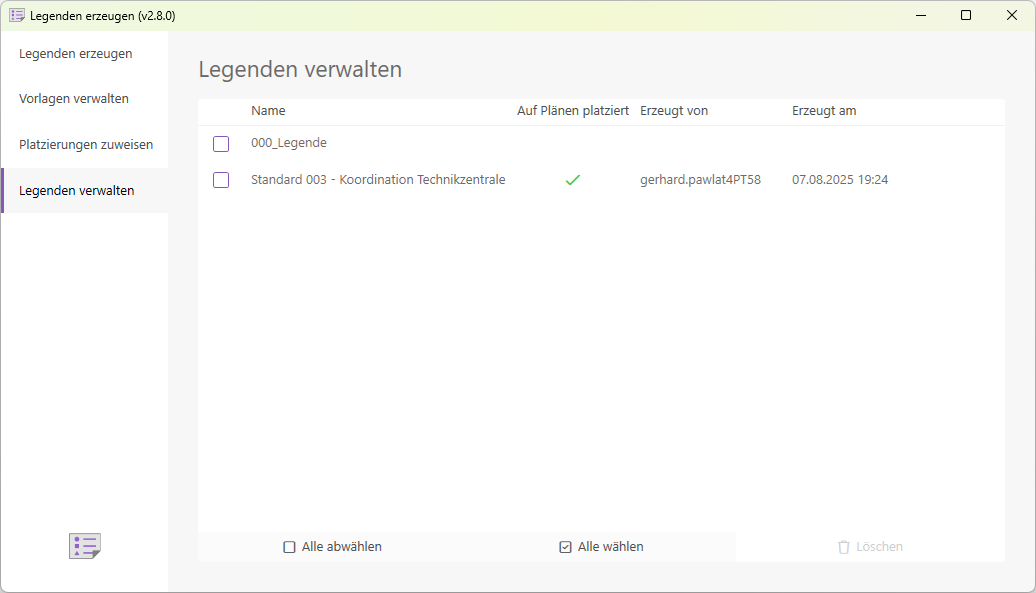
Assign a placement
- Go to the "Assign Placement" page and select the drawing header to which you want to assign a placement area.
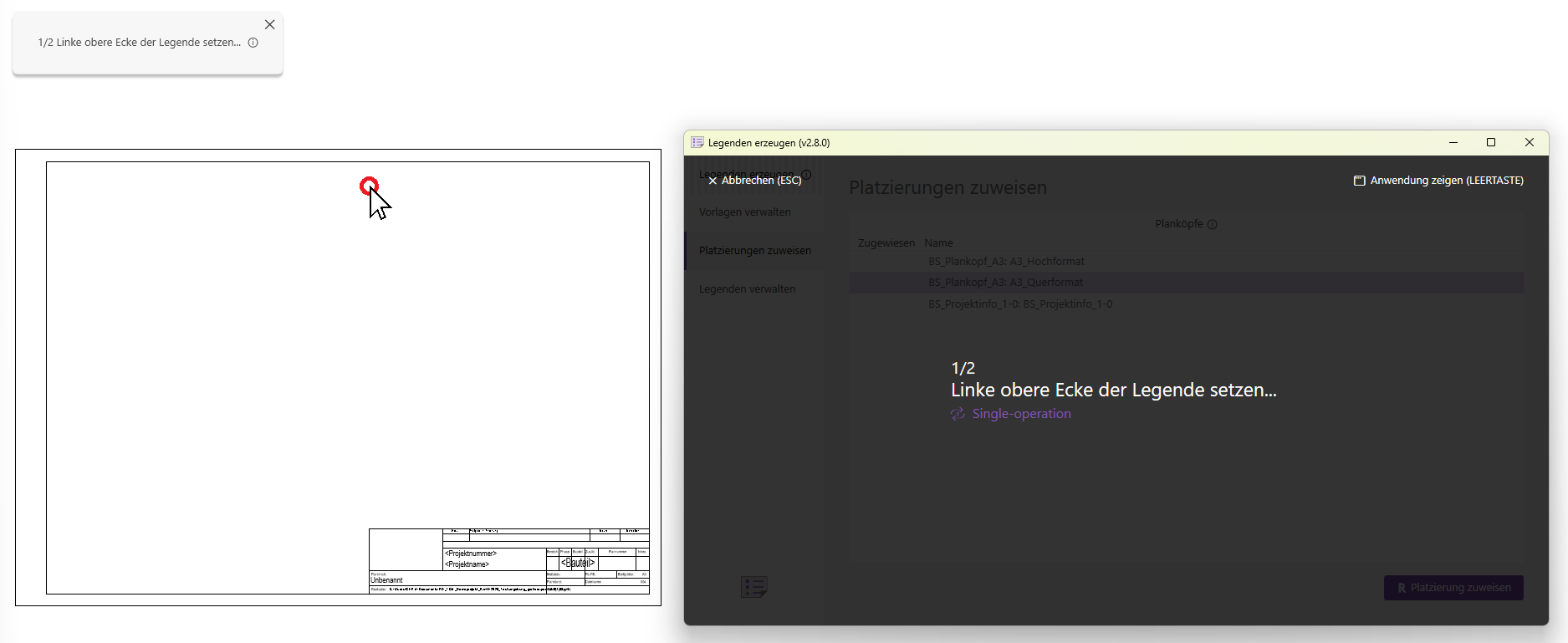
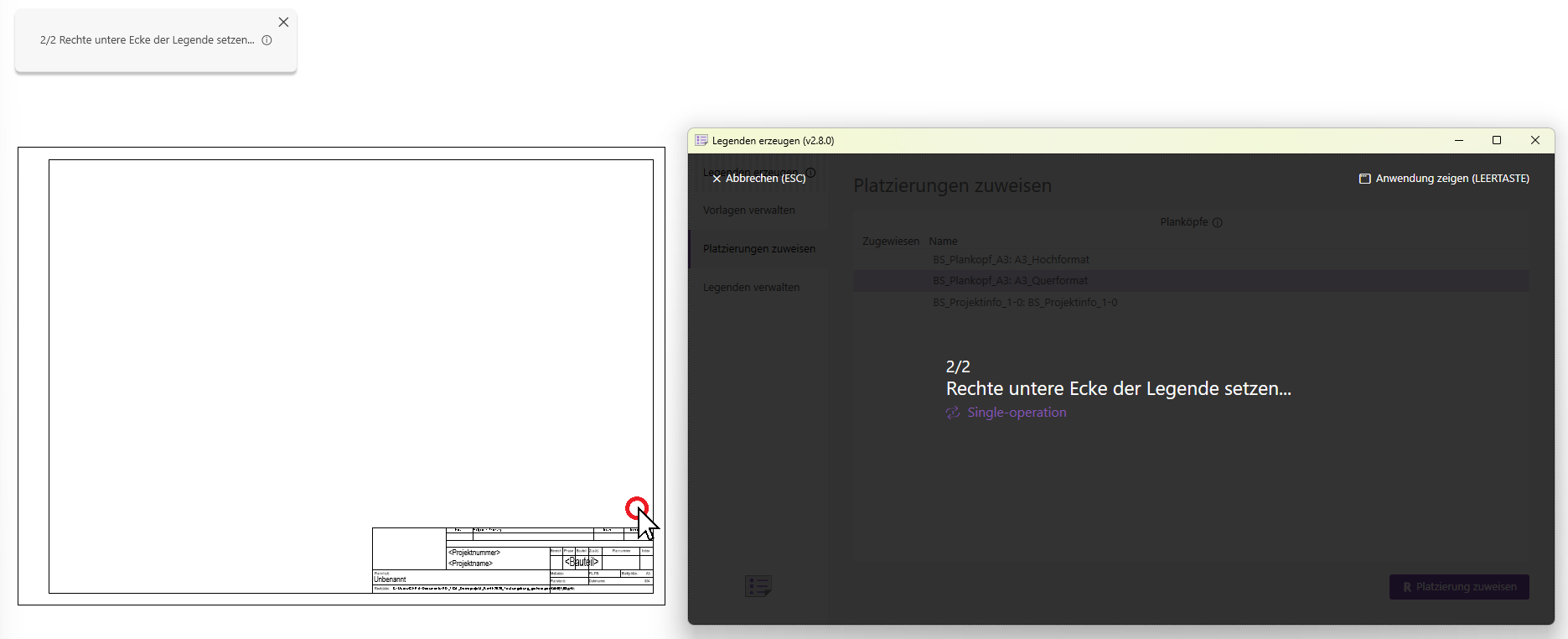
- A temporary plan will open, displaying the selected plan header. The user interface will now guide you through the process of selecting the placement area. Select the two points as prompted.
Creating Legends
- Once you have assigned a placement area to at least one sheet header and created at least one template, you can open the "Generate Legends" page.
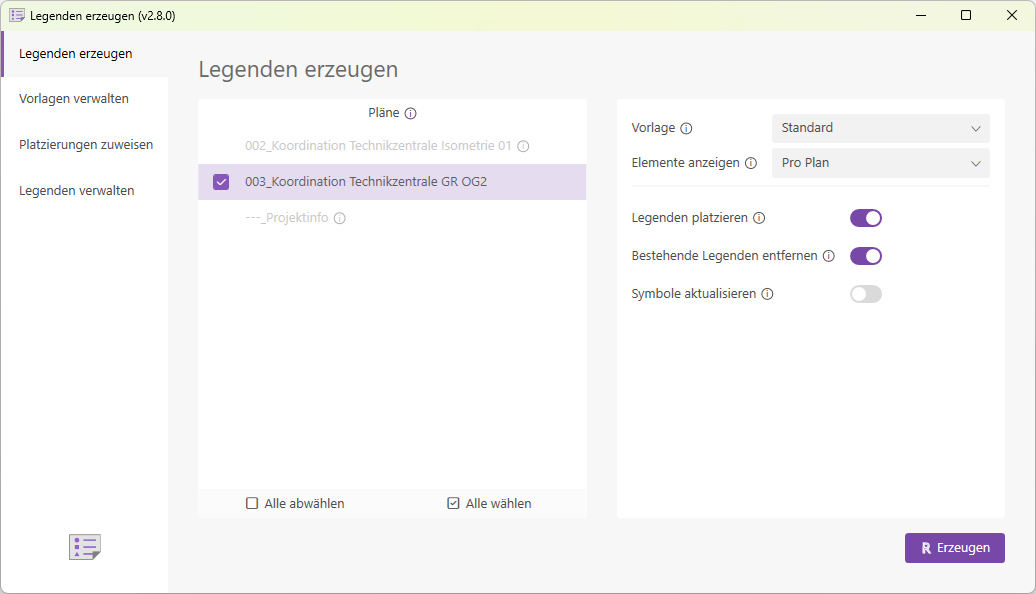
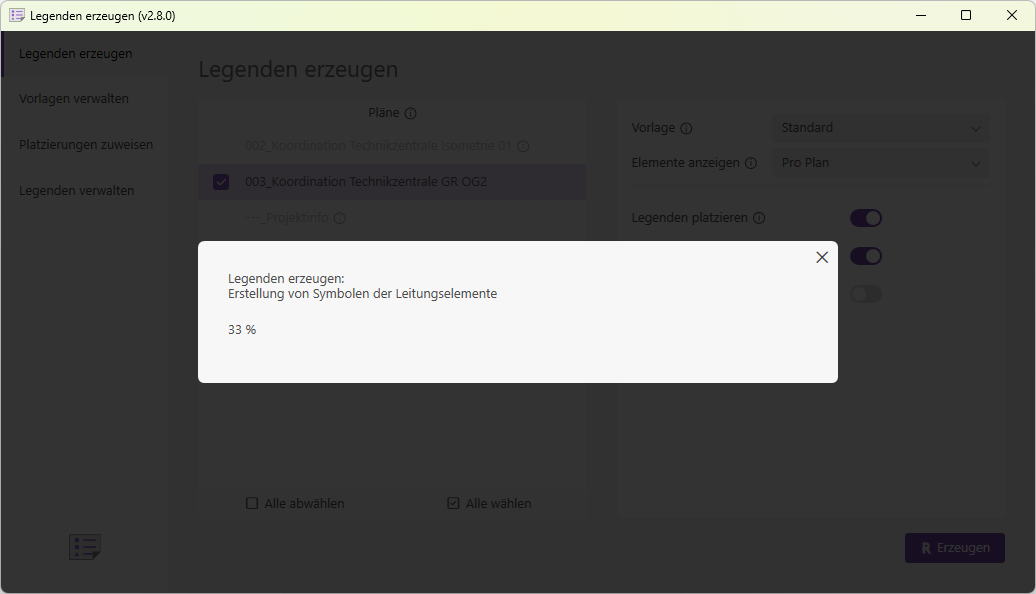
- Select the plans for which you want to generate legends, and click the "Generate" button. The symbols will now be created.
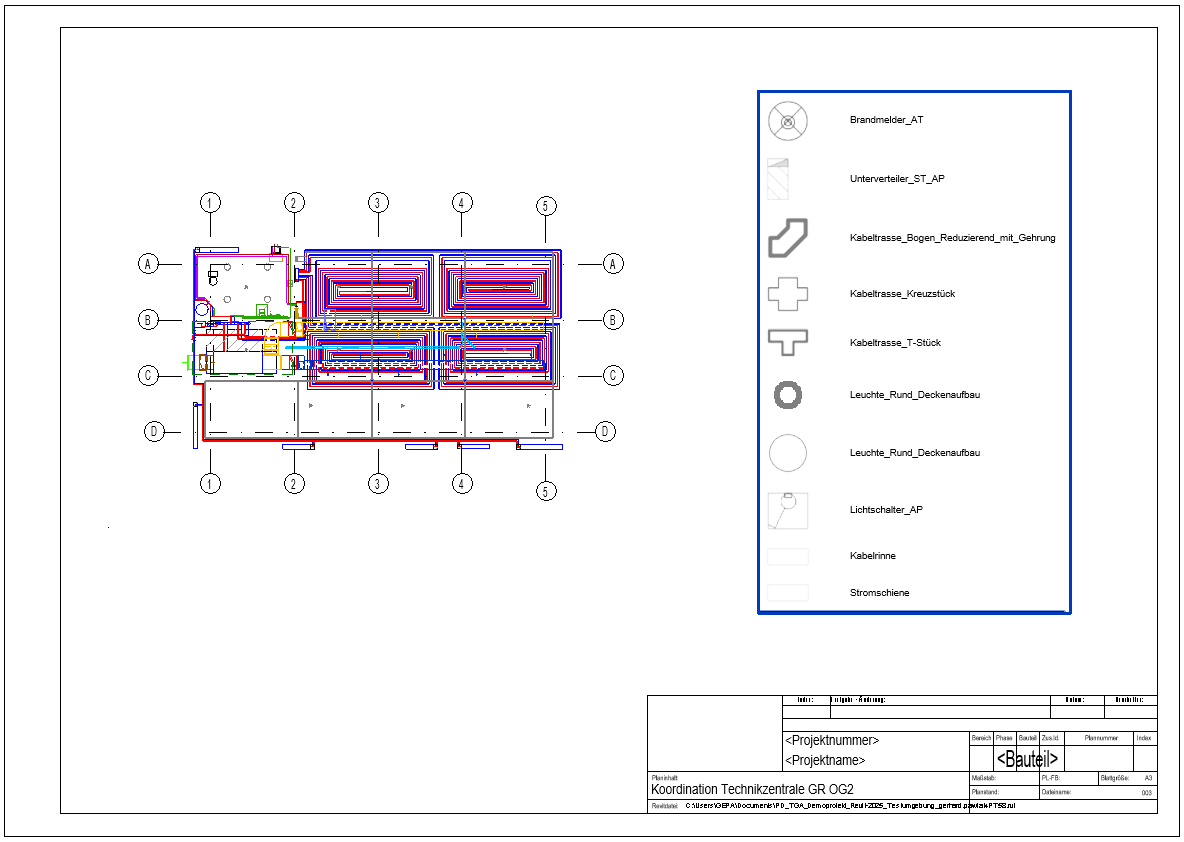
- The legends have been successfully created and placed on the plans.
2.9.0.0
- Revit 2026.0 through 2026.4 is now supported.
- The info icon opens the BIMpedia article.
- Pressing the F1 key opens the BIMpedia article.
2.10.0.0
- Bug fixed:
- When creating a legend for multiple plans, some symbols were not generated. This affected only elements that appeared on multiple plans and whose symbols had not yet been created in the model.
If you have any problems or questions, or if you have ideas or suggestions, please feel free to contact our customer service team. We look forward to hearing your suggestions for improvement!
Unfortunately, this content is available only to our Pro users.
If you'd like to read the full article, try the Pro account or become a Pro user.